To change your address on Google My Business, sign in at business.google.com, click Edit Profile, select Business Location, enter your new address, and save. Google will then ask you to re-verify the new location. The one thing that trips up most owners is outdated citations on Yelp, Apple Maps, and your website that no longer match your new GBP address.
Our team at Growth For Local has helped local businesses manage GBP changes for 4+ years. Most failed address changes stem from one of three avoidable mistakes, covered below. Read on for the step-by-step, what re-verification looks like, and what to do if your change is rejected.
Quick Answer: 5 Steps to Change Your Address
- Sign in to your Google Business Profile at business.google.com
- Click Edit Profile, then Business Information, then Location
- Enter the new address and adjust the map pin
- Click Save
- Re-verify the new location when prompted (postcard or video)
Tip: Update your address everywhere else (citations, website, Apple Maps) BEFORE changing it on Google.
Before You Change Your Address, Update These First
google-business-profile-pre-change-address-checklist
Don’t change your Google address first. Update your citations and documents first, then Google. Google cross-references your address with other sources before approving the change. If you update Google first, the re-verification runs against inconsistent data, which often causes rejections.
Follow this order:
- Update your business registration or Articles of Organization (LLC docs)
- Update your website’s contact page, footer, and LocalBusiness schema
- Update your top citations (Yelp, Apple Maps, Bing Places, Facebook, BBB)
- Update Google Search Console with a Change of Address (if you also moved domains)
- Get one fresh document at the new address (utility bill, lease, or business license)
NAP consistency across the web is the single biggest factor in whether your new address goes live without a fight.
How to Change Your Address on Google Business Profile (Step-by-Step)
You can change your address on Google Business Profile in 2 ways. Use Google Search on a desktop or the Google Maps app on your phone.
Method 1: Change Your Address via Google Search (Desktop)
- Sign in to the Google account that owns your Business Profile. Go to google.com and search your business name.
- Click “Edit profile” in the right-hand knowledge panel that shows up next to the search results.
- Click the “Business Information” tab, then click “Location.”
- Click the pencil icon next to your current address. Delete it and enter the full new address. Format: 1600 Amphitheater Parkway, Mountain View, CA 94043.
- Click “Adjust” on the map and drag the pin to the exact spot. Don’t skip this step. An incorrect PIN sends customers to the wrong place and hurts your local rankings.
- Click “Save.” Google will mark the listing as “Verification Required” (covered in the next section).
Method 2: Change Your Address via Google Maps App (Mobile)
- Open the Google Maps app on your phone. Tap your profile icon at the top right.
- Tap “Your Business Profile.” If you manage many businesses, pick the right one.
- Tap “Edit profile,” then tap “Business address.”
- Tap the pencil next to your current address. Type the new address and adjust the map pin.
- Tap “Save.” Google will prompt you to verify.
If you’re a service area business with no public address, the steps are different (see the SAB section below).
Re-verifying Your New Address on Google Business Profile
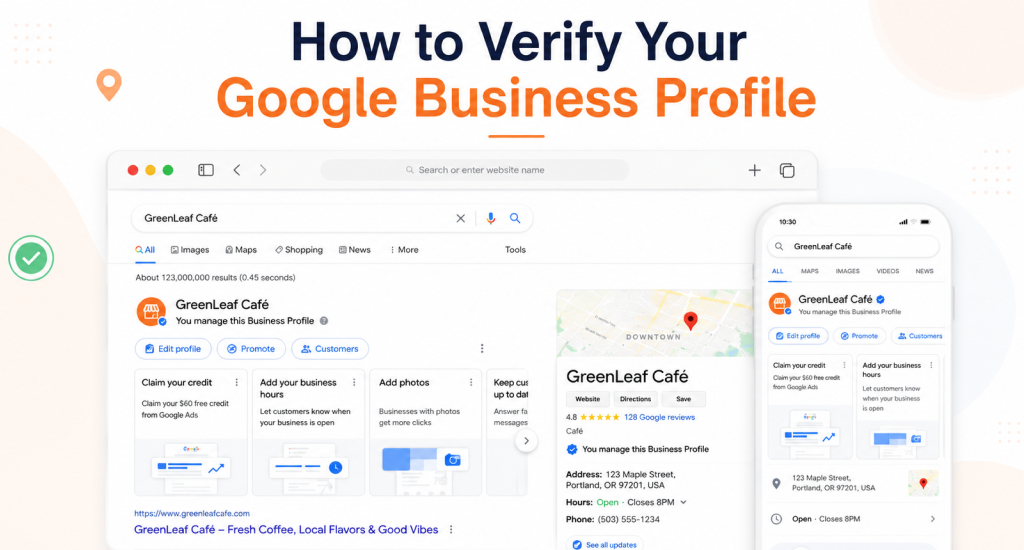
After you save the new address, Google marks the listing as “Verification Required.” You must complete re-verification before the change goes live.
Google offers 4 verification methods. You don’t pick the method; Google picks for you based on your business type and location:
- Video verification (most common in 2026): Record a 30 to 60-second walk-through of your business. Show your exterior sign, your interior workspace, and proof of your business (a license on the wall, branded equipment, or your computer with the GBP dashboard open).
- Postcard verification: Google mails a postcard with a 5-digit code to your new address. It arrives in up to 14 days. The code expires in 30 days.
- Phone or SMS verification: Available for some business types. Google calls or texts the code instantly. Make sure you can answer the phone when it rings.
- Email verification: The least common method. Available when your business email matches your domain.
Most address-change verifications now get video. While you wait for verification, do not edit the listing again. Edits during a pending re-verification cancel the code and reset the entire process. Stay patient and let Google complete the review.
How to Change Your Address Without Losing Reviews or Rankings
You will not lose your reviews when you change your address. Google ties reviews to the Business Profile, not the address. As long as you edit the existing profile rather than create a new listing, every review stays in place.
Follow these 5 rules to protect your reviews and your local rankings:
- Never create a new listing. Always edit the existing profile. New listings start at zero reviews and lose all your ranking history.
- Keep your business name, phone, and category the same. Change only the address. Multiple changes at once trigger a trust review, slowing approval.
- Update NAP everywhere. Inconsistent name, address, and phone data across the web is the #1 reason businesses lose rankings after a move.
- Post a “We’ve moved” update. Use Google Posts to announce the new address. Google rewards activity signals during transitions.
- Earn fresh local reviews. Ask new customers at the new location to leave a review that mentions your new neighborhood. These reviews help re-anchor your local relevance.
Most businesses recover their rankings within 2 to 4 weeks if they follow these 5 rules.
What to Do If Your GBP Address Change Is Rejected or Suspended
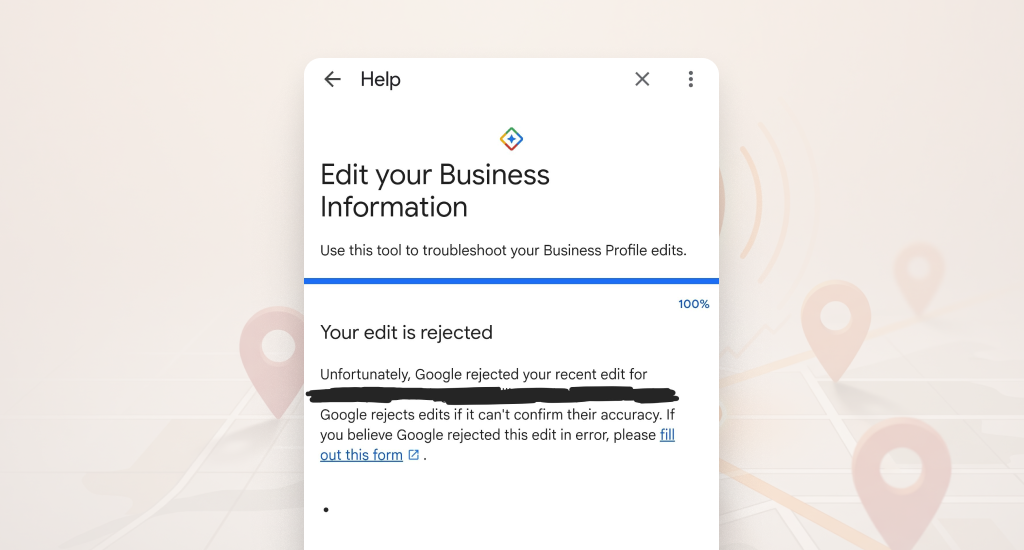
Address changes get rejected when Google cannot match your new address to other public records. They get suspended when the change appears to violate a guideline, such as using a PO Box, a virtual office, or keyword stuffing in your business name.
Follow these 4 steps to fix it:
- Check the rejection email first. Google usually names the issue (invalid address format, unverifiable location, or guideline violation). Knowing the exact reason makes your fix much faster.
- Fix the trigger before you resubmit. Re-format the address (use “Suite” or “Unit,” not “floor 2”). Remove keywords from the business name. Add the new address to your website and your top citations.
- Re-submit the edit. Do not delete the listing and start over. Starting over loses all your reviews and ranking history.
- If your listing is suspended, submit the Business Profile reinstatement form. Attach a utility bill, your business license, and exterior sign photos. If your first appeal is denied, file a second appeal with new proof.
Most reinstatement requests get a response within 14 days. While you wait, do not submit another appeal. Duplicate appeals get auto-denied.
Service Area Business? Here’s What’s Different
If you run a service area business, you don’t have a public address. Instead of changing your address, you update your service area, the cities or zip codes you serve.
Here are 4 differences to know:
- Hide your physical address. If you operate from home, keep your home address hidden from the public side of your Google Business Profile.
- List up to 20 service areas. Use cities, towns, or zip codes that match where you actually serve customers.
- Avoid overly broad areas. Listing “USA” or your entire state hurts your local relevance. Stick to areas you can realistically reach.
- Update your hidden address too if your work base has moved. Google still uses your hidden address for verification, even though customers cannot see it.
If you moved to a new city and your service area changes a lot, expect a short ranking dip while Google re-indexes your new coverage area.
Final Thought
Changing your Google address takes minutes, but re-verification can take days. Update your citations first, edit the existing profile, and don’t request changes while a re-verification is pending. The owners who keep their rankings are the ones who treat the move as a multi-platform update rather than a single GBP edit.
Need help managing GBP changes across many locations? Growth For Local handles GBP optimization for service businesses across the US.