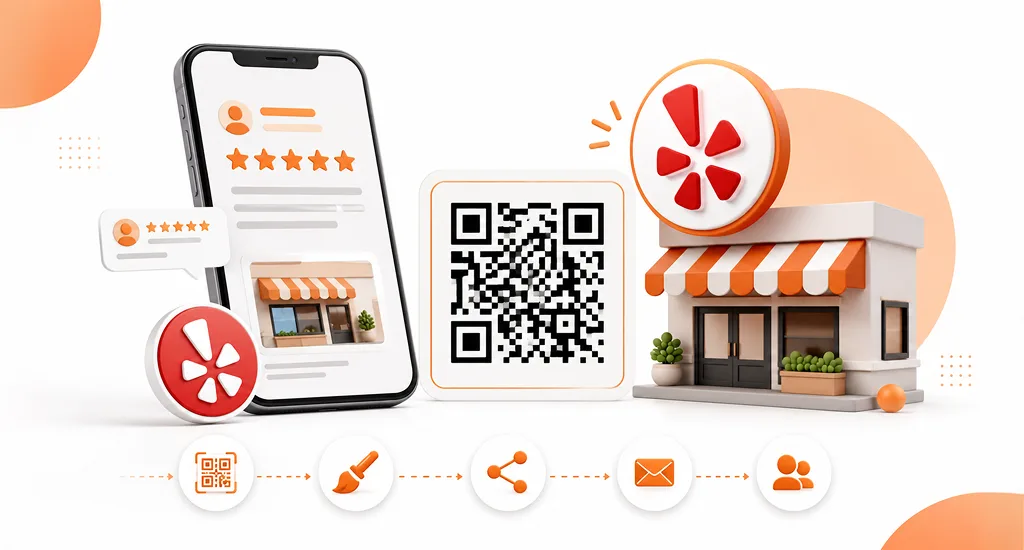
Learning how to create a QR code for Yelp reviews comes down to five steps: find your Yelp URL, paste it into a free generator, customize it with your branding, download the file, and print it where customers will see it.
QR codes make customers three times more likely to leave a review compared to a written or verbal ask, according to data from HiFiveStar and MapLift. That single stat explains why so many local businesses have swapped paper table cards for a scannable code near the register.
At Growth For Local, we’ve spent over four years helping local businesses build stronger review profiles. This guide covers why customer reviews and citations matter, then walks through the entire setup, start to finish.
Quick Answer: Create a Yelp review QR code in five steps. Copy your Yelp business page URL first. Paste it into a free QR code generator next. Customize the code with your brand colors and logo. Download the finished file as a PNG or SVG. Print it on table tents, receipts, or storefront signage.
Note: Yelp does not offer its own QR code generator, so any free tool works fine.
Key Takeaways
- How to create a QR code for Yelp reviews: copy your URL, paste it into a generator, customize, download, and print
- Static codes are free forever; dynamic QR codes cost a small monthly fee but let you edit the link later
- QR codes drive 3x more completed reviews than written or verbal requests
- Yelp allows passive display of codes but not direct requests for reviews
What Is a Yelp Review QR Code?
A Yelp review QR code is a scannable image that sends a customer’s phone straight to your Yelp business page, skipping the search bar and Yelp Business login screen entirely.
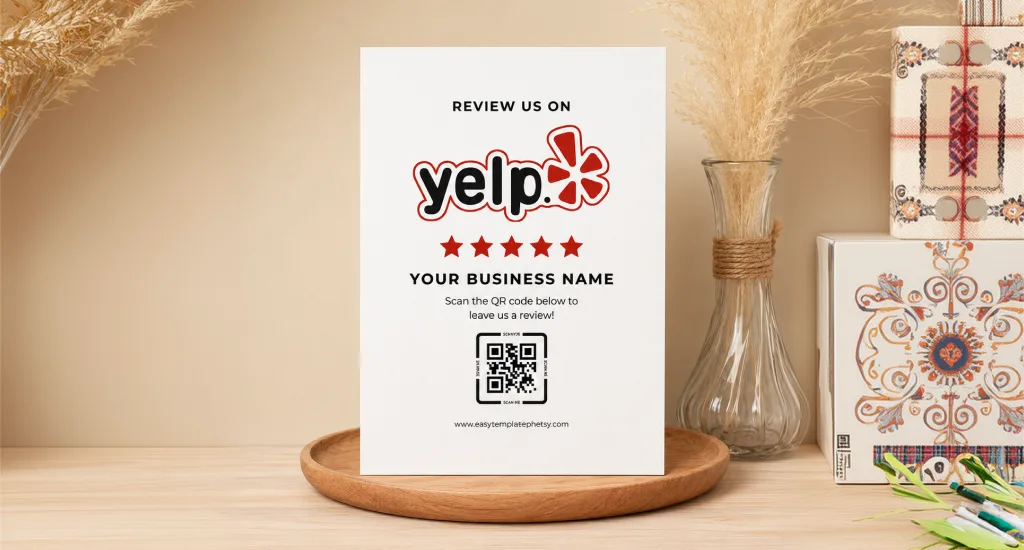
QR codes work through a simple camera scan. The phone reads the pattern, decodes the web address, and opens the link automatically. Most modern phones need no separate app for this smartphone scan to work.
This shortcut matters because friction kills reviews. A customer who has to search your business name on Yelp rarely finishes the job. Since reviews affect your business ranking in local search, every review collected through contactless review collection carries real weight.
The stats back this up, too: businesses using QR codes see 3x as many completed reviews as those relying on written asks.
There’s also a difference between a static QR code and a dynamic QR code. A static code never expires and stays free forever. A dynamic code, sometimes built through tools like Linkbreakers, lets you swap the destination link later, but usually costs a small monthly fee. Most salons and restaurants only need the static version.
How to Find Your Yelp Business URL
To find your Yelp business page URL, log in to biz.yelp.com, open your business page, and copy the address from your browser’s address bar.
Here’s the quick path:
- Go to biz.yelp.com and log in with your business account
- Click your business name to open the public page
- Copy the URL, which should look like yelp.com/biz/your-business-name
- Add ?hrid=writeareview to the end if you want the review link to open the review form directly, not just your business page
Most guides stop at step three. That extra tag sends scanners straight into the review box, cutting one more click out of the process. It’s a small trick, but it adds up during a busy lunch rush.
How to Create a Yelp QR Code (5 Steps)
Now that you have your Yelp URL, here’s how to create a QR code for Yelp reviews using any free generator online. The whole process takes about ten minutes.
Step 1: Open a Free QR Code Generator
Start by picking a tool. Most free generators work the same way, so choose one based on what extras you want, like analytics or ready-made templates. Several options work well here:
- QR Code Monkey: Free and unlimited, no signup required
- QR Codes Unlimited: Offers Yelp-specific templates
- QR Stuff: A simple, no-frills free generator
- Beaconstac: A free tier that includes basic scan analytics for a trackable QR
- Uniqode: Free tier with light customization options
Step 2: Paste Your Yelp Business URL
Drop the link you copied earlier into the generator’s URL field. Double-check it’s the exact business page URL and not a search results link. A preview appears instantly, so you can see roughly how the finished code will look before moving on to styling it.
Step 3: Customize the QR Code
Add your brand colors so the code feels like part of your business, not a generic sticker. Upload your logo in the center, keeping it under 20% of the total code size so cameras can still read it without errors.
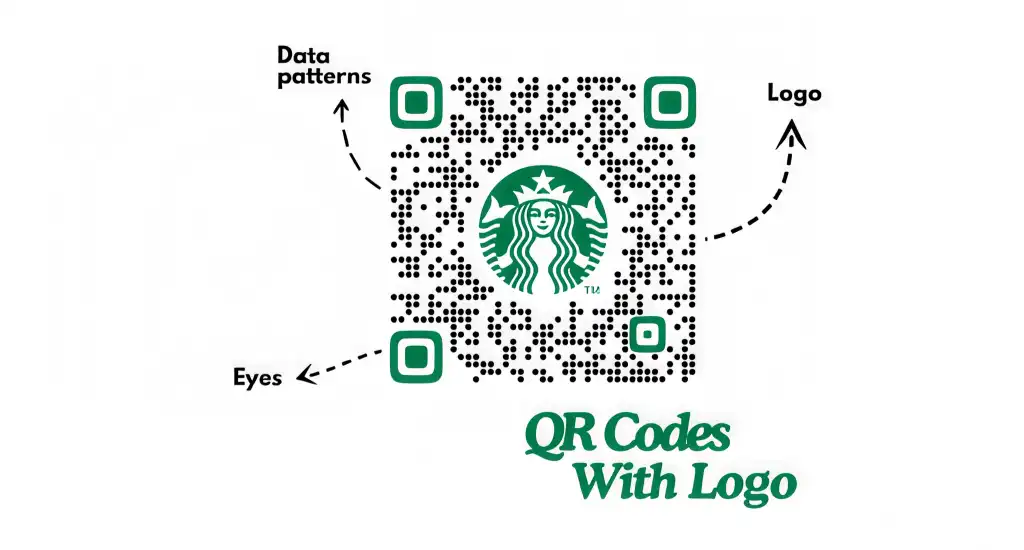
Choose a shape that fits your brand, whether that’s rounded dots or sharp squares, and keep a strong contrast between the code and its background. Low contrast is the fastest way to end up with a code that phones struggle to scan.
Step 4: Test the QR Code Before Downloading
Run a QR code testing pass with your own phone first. Confirm it opens the correct Yelp page every time. A code that fails after printing five hundred table tents is an expensive mistake nobody wants to repeat.
Step 5: Download and Print
Use PNG for digital use, like email or social posts. Use SVG for anything printed, since it scales cleanly to any size. Save at 300 DPI or higher for crisp results on your print materials.
Once printed, the code is ready for marketing collateral like table tents, receipts, or your storefront window. Placement matters almost as much as design, which is exactly what we’ll cover next.
How to Customize Your Yelp QR Code
Customizing your custom QR code means adding your brand colors, your logo, and a clear call-to-action so customers know what happens when they scan.
- Colors: Match your brand palette, but keep the dark sections at least 40% darker than the background. Low contrast is the top reason codes fail to scan.
- Logo: Center your logo inside the code. Most generators still produce a working branded QR code with up to 30% of the space covered, though smaller logos scan more reliably.
- Frame with a CTA: Add a short line around the border, something like “Scan to review us on Yelp.” A call-to-action on signage gives context; a code without one just looks like decoration.
- Size: Print at least one inch by one inch for tabletop use. Go bigger, three inches or more, for window decals and storefront signage viewed from a distance.
- Contrast test: If you can’t read a magazine barcode clearly from the same distance, your code is too small or too low contrast.
Best Places to Display Your Yelp QR Code
Display your Yelp review QR code where customers are most likely to scan it right after a good experience: checkout counters, receipts, table tents, and your storefront window.
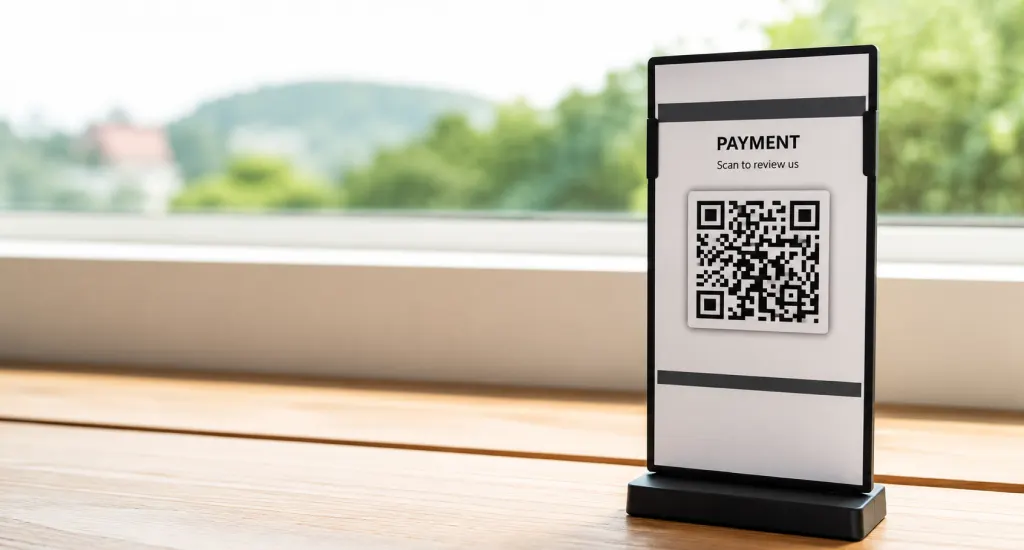
Here’s where it tends to work best:
- Table tents at restaurants and cafes, since customers have time to scan while waiting for the check
- Receipts, placed near the top with a short line of text
- Storefront signage or front door decals, which catch walk-by traffic
- Business cards are useful for contractors, salons, and other service businesses
- Email signatures, turning every message into a quiet review invitation
- Menu inserts, ideally on the last page or inside the bill folder
- Thank-you cards for takeout or online orders
- Waiting room signage, common in salons, auto shops, and clinics
Timing matters more than most owners realize. A code seen thirty seconds after a great experience gets scanned. The same code seen three days later, buried in a drawer, almost never does.
Yelp’s Rules on Asking for Reviews
Yelp’s official guidelines discourage business owners from directly asking customers to leave a review. Placing a QR code somewhere in your store is fine, but pushing a customer to scan it and leave a good rating crosses a line Yelp actively watches.
What’s allowed:
- Passive display of QR codes inside your business
- Yelp badge stickers or “Find us on Yelp” signage
- Yelp check-in prompts
What’s not allowed:
- Directly asking a customer for a review request
- Offering discounts or freebies in exchange for a review
- Sending customers to gated pages that filter out negative feedback
This matters because Yelp’s recommendation software filters reviews it suspects were solicited, which touches on how Yelp handles review removal in general. Passive display near the register avoids that flag entirely.
It’s also worth noting that this is separate from a customer choosing to delete a Yelp review you posted by mistake, which they can do anytime from their own account. You can read Yelp’s official content guidelines for the full policy.
Common Mistakes to Avoid
The most common Yelp QR code mistakes are skipping the test scan, using the wrong URL, printing at low resolution, and placing the code where nobody sees it. Each one is easy to avoid with a quick check before printing.
- Skipping the test scan: Never print before scanning the code yourself. A broken link on five hundred table tents wastes money and looks unprofessional.
- Wrong URL: Copying a Yelp search results page instead of your actual business page sends customers to the wrong place entirely.
- Low resolution: Downloading a small file makes the code blurry once printed, especially on larger signage.
- Poor lighting: A code placed in a dim corner is hard for cameras to read.
- No CTA: Without a line like “Scan to review us,” people won’t know what the code does.
Final Thought
Creating a Yelp QR code is free, takes about ten minutes, and can 3x your review generation rate. Find your Yelp URL, use a free generator, customize with your brand, test it, and place it where satisfied customers will see it right after their visit.
Want more ways to grow your Yelp presence? Explore our other guides on local SEO and reputation management at Growth For Local, including deeper coverage of how to create a QR code for Yelp reviews for multi-location businesses.