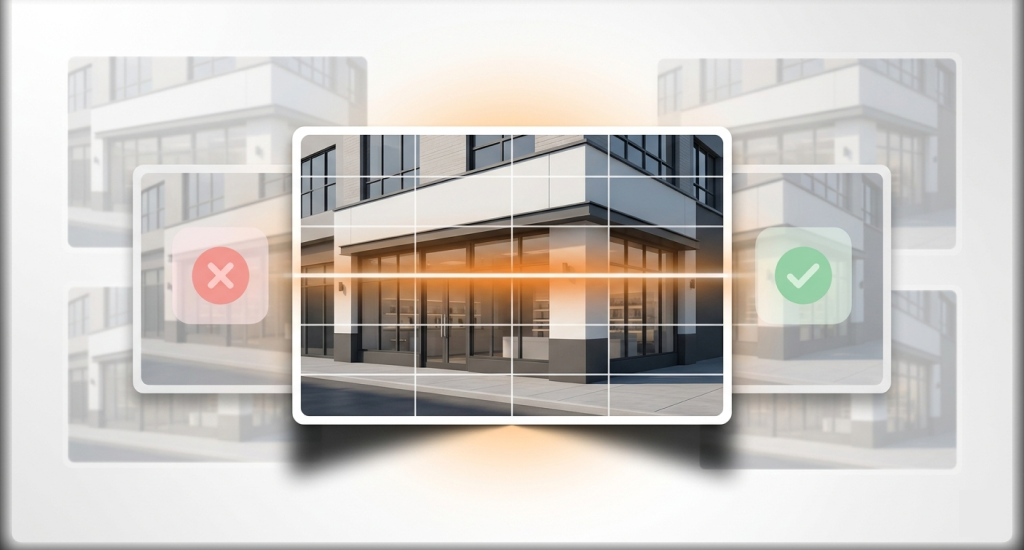
A fresh business photo should appear on your listing quickly. Many owners feel confused after they see a red notice that says rejected. The issue often connects with simple rules that Google checks during upload.
Many owners ask, “Why are my photos being rejected on Google Business?” after a normal upload. In many cases, Google Business Profile photo rejection happens because of the wrong size, text overlays, copyright images, or file format problems.
This guide explains the real causes behind rejected photos in clear steps. You will also see simple fixes that help your images pass review and appear on your business profile.
First Check: Is Your Google Photo Really Rejected, or Just Stuck?
Many owners panic after they see Google Business photos pending or a red rejection notice. In several cases, the photo is not truly rejected. The system sometimes shows a warning first and approves the image later. Some photos are published after a delay of about 24-48 hours.
New profiles also face extra trust checks, which can slow the review process. Before you edit or delete your photo, check the upload time and profile status.
- Uploaded Today: You should wait at least 48 hours before you change anything. A small system delay can hold photos in pending status during review.
- Newly Verified Profile: Google may run extra trust checks on new listings. Photos can stay in pending review for several days or even a few weeks.
- Still Rejected After 48 Hours: The issue likely connects with policy rules or photo quality. In that case, you should move to other fixes.
The 9 Fixes to Google Rejecting Your Business Photos (Most Common Reasons & Solutions)
Many photo rejections happen because of small rule breaks, weak image quality, or technical format issues. Yet rejection does not appear in every upload. The nine fixes below explain the most common causes and simple solutions.
Also read: How to Attract More Visitors to Google Business Profile
Fix 1: Wait 24 to 48 Hours (False “Rejected” Bug)
A strange system delay sometimes causes confusion for business owners. A photo may show as rejected even when it follows every guideline. In many cases, the image appears later after a short indexing delay.
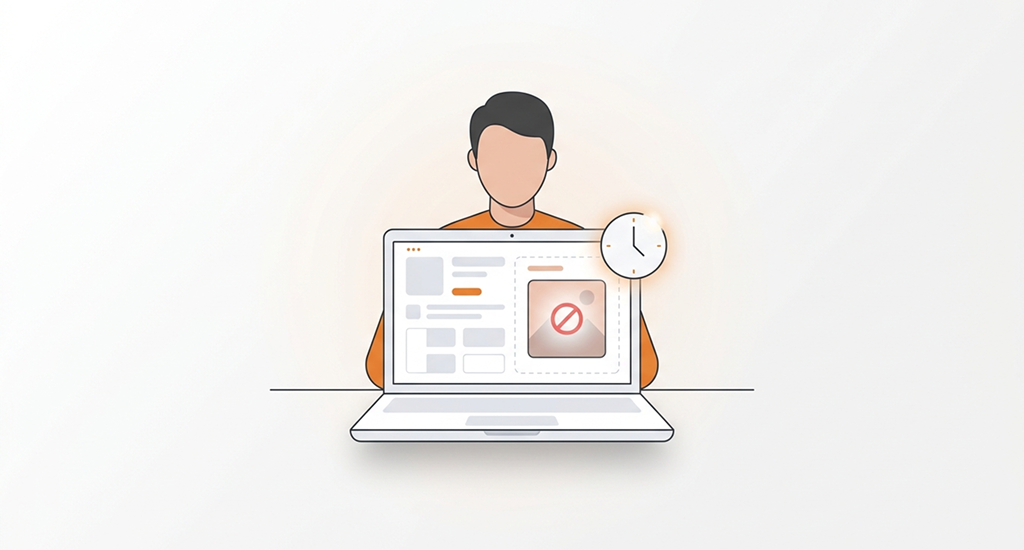
The system review can take up to 24-48 hours before the photo moves from rejected status to published. Many owners search for answers after they see Google Business Profile photos rejected without any clear mistake.
Steps to solve the issue:
- Do not delete the photo: Removing the image too fast can restart the review cycle and delay the normal publish process.
- Check the listing again after 48 hours: Open your business profile on Search or Maps to confirm if the image appears.
- Move to the next fix if needed: If the photo still shows rejected after two days, apply the next solution below.
Fix 2: Convert to JPG/PNG and Hit the 720×720 Sweet Spot
Many photo rejections happen because of technical spec issues. The system only accepts certain file formats and size limits. If the photo fails these rules, the upload fails even when the image looks perfect.
Google expects simple file standards for every business image. The correct Google business photo guidelines size format includes JPG or PNG files, size between 10 KB and 5 MB, and a square resolution near 720×720 pixels. The system may accept a minimum size of 250×250, yet higher resolution improves approval chances.
Steps to fix the format issue:
- Export the image again: You should use the original photo file instead of a screenshot to keep the correct quality and file structure.
- Resize to a square format: Try to set the image near 720×720 pixels so it meets Google’s recommended resolution standard.
- Upload the image once again: A fresh upload after correction often solves the issue quickly.
Fix 3: Improve Quality (Blurry, Dark, Over-Filtered Photos)
Low image quality often explains Google business profile photos rejected cases. The review system checks visual clarity before approval. Blurry photos, dark scenes, or heavy edits can trigger automatic rejection.
Google expects photos that look natural and easy to understand. A good image should appear in focus, clear, and well lit. Strong filters or extreme edits often create an unnatural look. These alterations may cause the system to treat the image as misleading or low quality.
Steps to improve photo quality:
- Use natural light: You should take the photo near daylight or increase brightness slightly so the business area appears clear and visible.
- Avoid strong filters: Extreme HDR, beauty filters, or heavy color edits can create unnatural images that could fail the review check.
- Upload the original file: A clean and high-quality version often improves approval chances and reduces rejection risk.
Fix 4: Remove Text Overlays, Watermarks & Promo Graphics
Many business owners add text or graphics to attract attention. This approach often causes rejection inside Google Business Profile. Images with large text overlays, visible watermarks, or bold logos can look like advertisements instead of real photos.
Google prefers natural pictures that represent the actual place or service. Strong promotional content inside the image may also trigger automatic rejection.
Steps to fix the issue:
- Upload a clean photo: You should remove phone numbers, discount messages, banners, or watermark marks before uploading the image again.
- Keep the photo natural: A simple picture of your location, product, or workspace usually passes review faster.
- Use Posts for promotions: You can place offers, coupons, and discount graphics inside the Posts or Offers section instead of photos.
Fix 5: Remove Duplicate Images (Even Slightly Edited Copies)
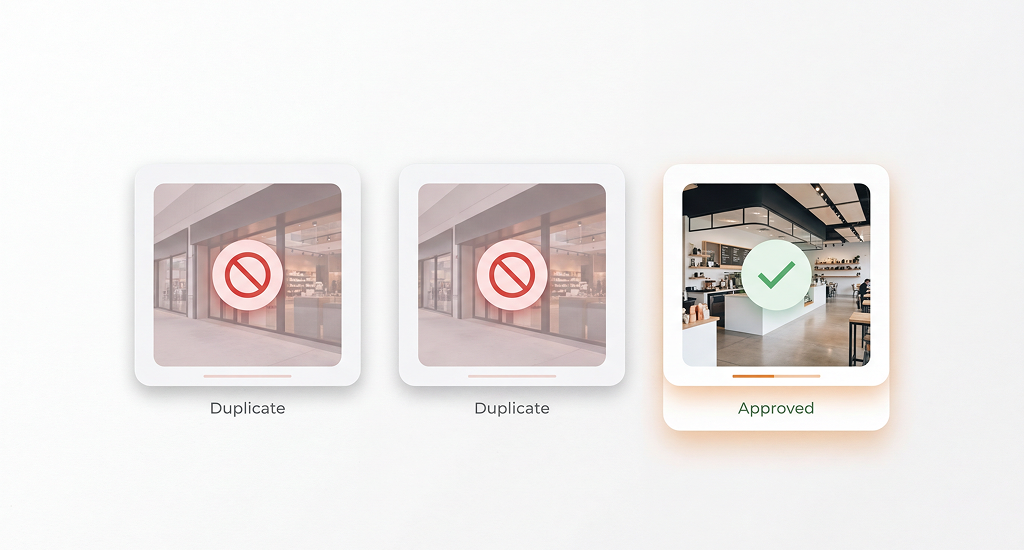
Repeated uploads of the same photo can trigger rejection in many listings. The system checks for duplicates and also detects near-duplicates that look almost identical. Even a small crop or color edit may still match the original file. A newer system filter, often called a new algorithm, can block repeated images across the same profile.
Steps to fix the duplicate issue:
- Delete repeated uploads: Remove extra copies of the same image from the media section before you try again.
- Upload clearly different photos: You should use three to five images that show different angles, scenes, or parts of your business.
- Wait before another upload: Allow about forty-eight hours so the system can refresh the profile review status.
Fix 6: Make Sure the Photo Is Truly Relevant to the Business
Google reviews images to confirm they represent the real business. Photos that look unrelated often fail the review check. Random pictures, meme graphics, or generic stock images can appear misleading.
The system expects real scenes connected to the location or service. Clear photos of the storefront, interior, exterior, team members, or products usually pass approval more easily.
Steps to improve photo relevance:
- Show the real location: You should upload images of your storefront sign, entrance, workspace, or interior area that customers can recognize.
- Display products or services: Share photos that show finished work, items for sale, or team members during normal work activity.
- Avoid unrelated images: Do not upload stock-style pictures, abstract graphics, or scenes that do not connect to your business.
Fix 7: Avoid Copyright and Privacy Problems
Another common cause behind Google Business Profile photos rejected is the use of images you do not own. Google checks for copyright infringement during the review process. Photos copied from other websites or social platforms often fail approval.
These files count as third-party images, which may break content rules. Privacy details inside a photo can also trigger rejection. Clear faces or license plates sometimes require caution if they reveal personal information.
Steps to avoid copyright and privacy issues:
- Use your own photos: Pictures taken at your location can help prove authenticity and reduce the chance of copyright violations.
- Avoid copied images: Do not upload competitor photos, Pinterest downloads, or screenshots taken from other websites.
- Protect personal details: Blur sensitive elements like visible license plates or private information while keeping edits minimal.
Fix 8: If Your Profile Is New or Recently Reinstated, Expect Trust Checks
A new profile often faces longer review times for uploaded photos. The system performs extra verification to confirm that the business looks genuine. This step sometimes places images inside a review phase, similar to a sandbox period.
During this stage, photos may stay pending for weeks even when they follow every guideline. The same pattern can appear after a reinstated listing returns from suspension.
Steps to handle trust checks:
- Upload a small photo set: You should add about five to ten high-quality pictures that clearly represent your location and services.
- Keep profile information consistent: Accurate hours, categories, and website links help the system confirm your business identity.
- Check again after one or two weeks: Many new listings show approved images once the early review phase completes.
Also read: How to Add a Photo to a Google Review Easily on Any Device
Fix 9: Clean Re-Upload Workflow (and When to Escalate)
Sometimes every rule looks correct, yet the image still fails approval. A structured re-upload process often solves the issue. The goal is to test one corrected version at a time. This method helps identify the real cause and improves the chance of approval.
Many owners search for how to get Google Business Photos approved after repeated rejection messages. If the system blocks several compliant images, the issue may be connected with deeper moderation rules. At that stage, a Google support request may help resolve the case and provide a rejected Google Business Photos fix.
Steps for a clean re-upload workflow:
- Remove rejected images: Delete the blocked photo from the profile before you attempt another upload.
- Upload one corrected version: Change only one element, like format, size, or quality, to test the result.
- Wait two days: You should allow the system about forty-eight hours to complete the review process.
- Escalate if needed: Collect screenshots and request help from Google Business Profile support or the community forum.
Google’s Photo Requirements (Specs + Quality Checklist)
Many owners ask why are my Google Business photos rejected even after a clear upload. A common reason is a simple spec issue. Google checks every image against strict technical rules. A photo may look perfect to you, yet the system may block it if the size or format fails the rules.
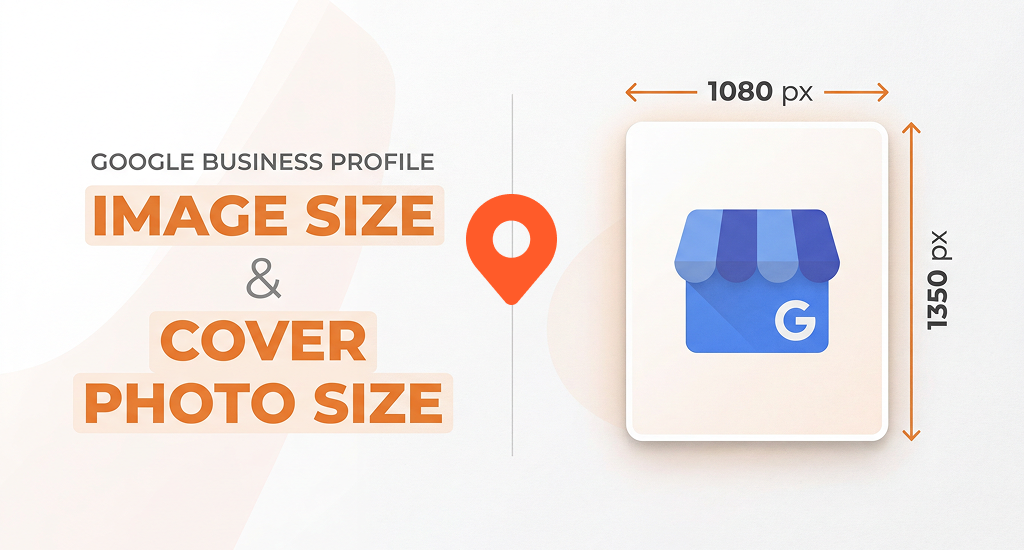
Google also checks image quality before approval. The photo must appear clear, bright, and natural. Heavy filters or strong edits often trigger rejection. These checks follow the official Google business photo guidelines size format that Google recommends for all listings.
You can use the checklist below before you upload a photo to your profile.
| Requirement | Details |
|---|---|
| What to use | JPG or PNG |
| File size | 10 KB to 5 MB |
| Recommended resolution | 720 px × 720 px |
| Minimum resolution | 250 px × 250 px |
| Quality | In focus, well-lit, no heavy filters or strong edits |
A quick check of these rules often solves the problem and improves your chance to how to get Google business photos approved without delay.
Free Download: GBP Photo Approval Checklist (2026)
Final Thought
Many owners ask why is Google rejecting my business photos after a normal upload. Most of the rejections connect with simple issues like wrong specs, low quality, or policy violations like overlays, duplicates, or copyrighted images.
A system delay can also confuse. Some photos appear rejected but are published after a 24-48 hour bug delay. New listings may undergo additional profile checks, which can extend review time before approval.