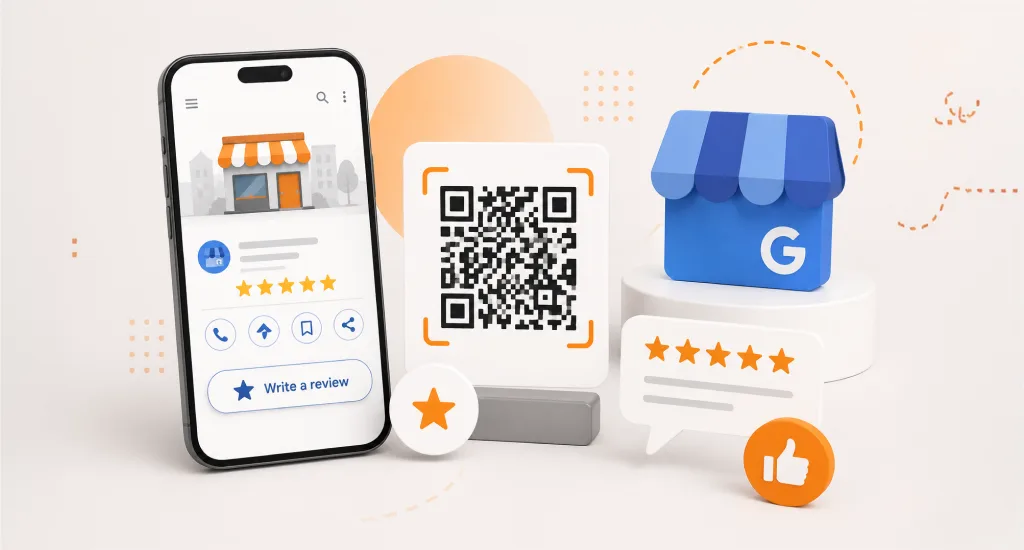
Wondering how to get a QR code for Google Business Reviews? There are two ways. Download the built-in QR code from your Business Profile dashboard under the “Ask for reviews” button, or copy your Google review link into a free QR code generator like Canva.
A QR code makes leaving feedback effortless. One scan opens the review form directly on a customer’s phone, skipping typing, searching, and copy-pasting entirely.
Before you start, know this: Google’s built-in QR code generator only works on desktop browsers. If you’re on mobile, you’ll need a workaround covered further down in this guide.
Why Every Local Business Needs a Google Review QR Code
A Google review QR code removes every friction point between a happy customer and a finished review. Instead of typing a business name into Google or hunting for a review request link in a text message, customers scan and land straight on the review form.
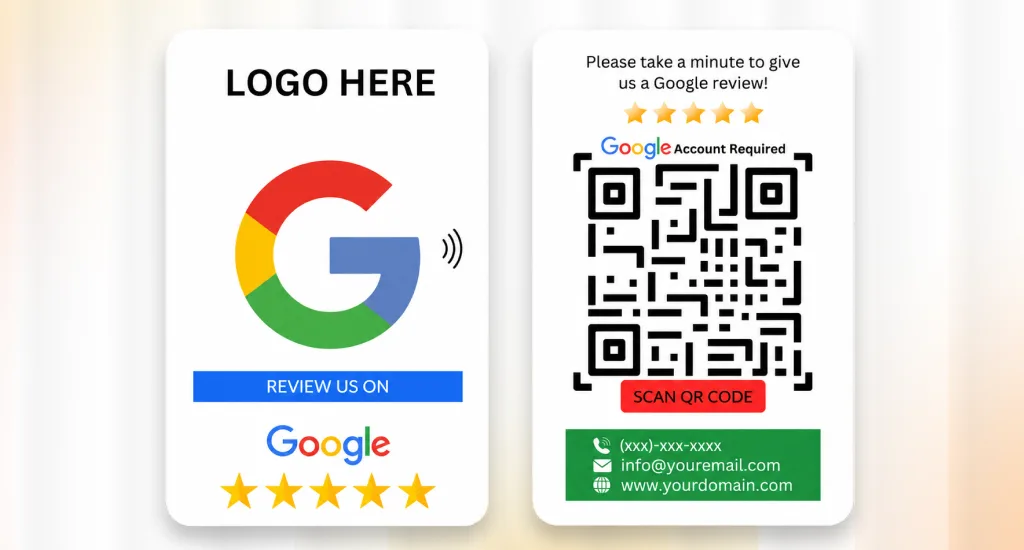
Studies suggest QR codes can convert three to five times more reviews than emailed links, since scanning replaces typing, copy-pasting, and searching with one motion. That gap adds up fast for busy owners chasing customer reviews.
Common ways businesses put this to work: printing the code on receipts so every transaction ends with a prompt, displaying a stand or review sticker at the counter, adding it to a business card QR code for field techs and agents, or dropping it into thank-you emails and post-service texts.
More reviews do more than build an online reputation. They also improve local pack rankings, and once your QR code is live, you can measure local search CTR improvements by comparing click-through data before and after launch. It will help you get more visitors on Google Business Profile.
Method 1: Use Google’s Built-In QR Code Generator (Fastest)
This is the fastest way to learn how to get a QR code for Google Business Reviews using the Google My Business QR code tool built right into your dashboard.
- Open a desktop or laptop browser. This feature does not work on mobile.
- Sign in to the Google account tied to your Google Business Profile (GBP).
- Search your business name on Google. Your Business Profile dashboard should appear at the top of the results.
- Click Read Reviews, then Get more reviews, marked with a share icon.
- A window opens showing your direct Google review link and a QR code.
- To download the QR code, right-click on it and choose Save image as to save it to your computer.
- To copy the review link instead, for use with custom QR generators, click the copy icon next to it.
The downloaded file is plain black and white. No logo, no brand colors. It’s the fastest option, but the least polished, so it works best for receipts and quick internal prints rather than storefront displays.
Method 2: Create a Custom Branded QR Code
If you already know how to get a QR code for Google Business Reviews the plain way and want more polish, use this method. It matches your QR code to your brand, with a logo, brand colors, and a frame that says Scan Me.
Step 1: Get Your Review Link
To get your Google review link, follow steps one through five from Method 1, but instead of downloading the QR code, click the copy icon to copy your Google review link. It typically looks like g.page/r/[unique code]/review or search.google.com/local/writereview?placeid=[Place ID].
Save this link somewhere safe, since you’ll paste it into whichever generator you choose next, and you may need it again later for social posts or email signatures.
Step 2: Open a Free QR Code Generator
Head to a free QR code generator such as Canva for design flexibility, QR Code Monkey for logo integration, QRCodeKit, or Jotform. All four offer free downloads for basic branded codes, though some cap high-resolution exports or bulk downloads behind a paid tier, so check before committing to one tool for an entire print run.
Step 3: Choose URL as the QR Code Type
Select URL or Link as the QR code type inside the tool, then paste in the link from your review link generator of choice, the review link you copied earlier, to build the code. Most tools generate a live preview instantly, so you can catch formatting issues before moving to the design stage.
Step 4: Customize Your Design
Upload your logo and place it in the center, pick brand colors for the pattern and background, and add a frame with text like Scan to Review Us or Leave a Google Review.
This step is also where solid Google Business Profile optimization pays off, since a QR code that matches your listing’s branding builds instant recognition for repeat customers.
Also, when customers leave a review for the exact location, the process improves the location’s authority on Google Maps.
Step 5: Test Before You Print
Scan the finished code with your own phone before printing anything. Confirm it opens the correct review form, then download as PNG for screens or SVG for print scaling.
Avoid over-customizing. Too much contrast loss or an oversized logo can make the code unscannable, wasting the print run and delaying your rollout by days while you wait on a reprint.
Alternative: Get Your Review Link Using Your Place ID
If you’re locked out of your dashboard or an agency manages your profile, you can still build a review link manually using your Place ID.
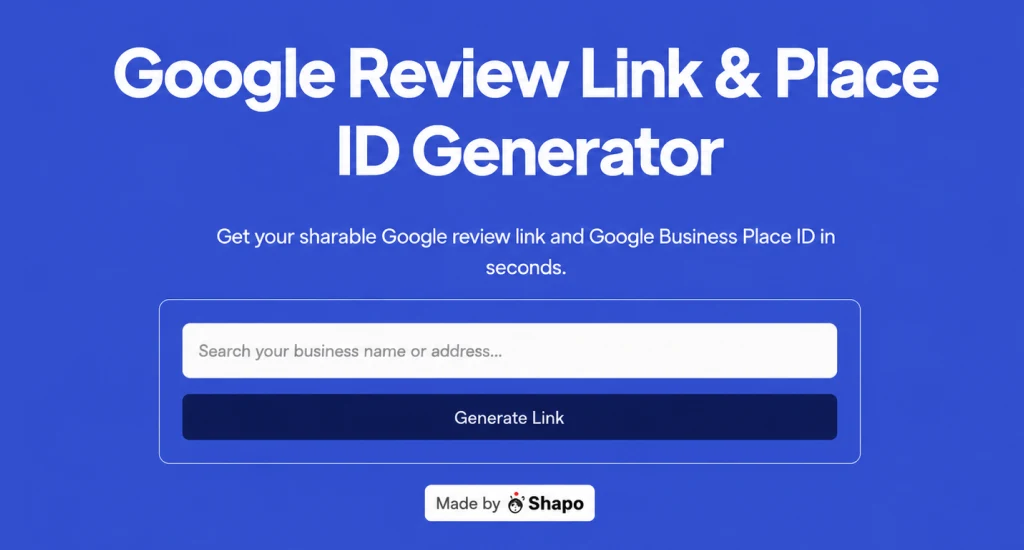
Go to Google’s Place ID Finder tool. Search your business name and copy the Place ID string it returns. This string is unique to your listing, so double-check it matches the correct location if you manage more than one business address.
Construct your review URL using this format: search.google.com/local/writereview?placeid=YOUR_PLACE_ID. Paste the finished link into any QR code generator to create your code.
This fallback is especially useful for agencies juggling multiple client Google Business Profile accounts or for any owner whose “Ask for reviews” button has gone missing from the dashboard. It also works as a backup method if Google changes the review flow in a future update.
Where to Display Your Google Review QR Code
Where you place your QR code matters as much as how you create it. The right spot catches customers at peak satisfaction, right after a good experience, when they’re most willing to leave feedback rather than walk away and forget.
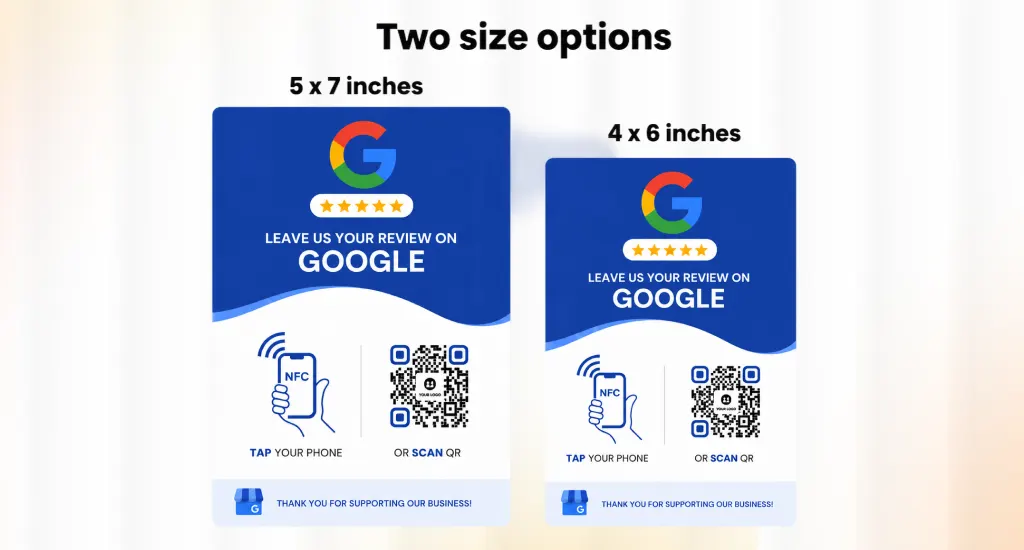
- Checkout counter: A checkout counter QR stands at eye level, catching customers right as they pay. Order a pre-made acrylic stand or print your own.
- Receipts: Add the code to the bottom of every printed receipt. Automate this through your POS system if it supports custom fields.
- Thank you emails: Embed the QR code image directly in post-purchase or post-service emails as a feedback link.
- Business cards and printed materials: Contractors, real estate agents, and mobile service providers should print the code on the back of every card. Format any printed address exactly like your listing, including a properly formatted STE in an Address, to keep citations consistent.
- Service vehicles: Great for HVAC, plumbing, cleaning, and pest control vans and wraps.
- Waiting areas: Table tents, menus, and waiting rooms work well for restaurants, salons, and medical offices.
- Post-service SMS: Send the link, not the QR image, since it’s already a phone, in a follow-up text one to two hours after service.
Common Mistakes to Avoid While Getting a QR Code for Google Business Reviews
A few common marketing mistakes regarding the QR code can tank your review conversion rate or even get your profile flagged. Here’s what to avoid before you print a single QR code or sticker, since fixing these after printing costs both time and money.
Never Offer Incentives
Google’s policy strictly prohibits offering discounts, free products, or any reward in exchange for a review. Violations can lead to the removal of reviews or a suspended profile. The QR code should invite feedback, not bribe it, and Google’s spam detection systems increasingly flag incentivized language automatically.
Don’t Print Before Testing
Always scan the finished code with two or three different phones first, ideally across both iOS and Android. Confirming it opens the correct review form before printing saves you from costly reprints and the awkward task of collecting misprinted materials from every location.
Avoid Over-Designed Codes
Too much color contrast, an oversized logo, or a code that’s too small will break scan reliability fast. As AI for local business tools gets better at reading damaged or low-contrast codes, it’s still safer to follow standard sizing and contrast guidelines than to rely on error correction alone.
Don’t Ask for a Specific Star Rating
Say, leave a Google Review instead. Asking directly for a five-star rating is manipulative and violates Google’s review guidelines and can result in review removal if another user or an automated system flags it.
End Note
Now you know how to get a QR code for Google Business Reviews, whether you grab the free built-in version from your dashboard or build a branded one with your own logo and colors. Either method removes friction and turns happy customers into public proof of great service.
Pick the option that fits your time, test it on your own phone first, then place it where customers feel most satisfied.
FAQs
Is a Google review QR code generator free?
Can I create a Google review QR code on my phone?
How do I get my Google Business review link?
Can I customize the Google review QR code with my logo?