To fix your address on Google Maps, open the Google Maps app or maps.google.com, search the address, tap Suggest an edit, choose Fix an address, move the pin to the exact spot, and tap Submit. The one thing most people miss: the pin must land on the center of the building or your front door, not the road.
Wrong addresses on Google Maps cost real money. Delivery drivers from UPS, Amazon, and DoorDash all use it to find your door. Our team at Growth For Local has helped local businesses keep their Maps data accurate for 4+ years. Read on for the exact steps, how long it takes, and what to do if Google keeps reverting your edit.
Quick Answer: 5 Steps to Fix Your Address on Google Maps
- Open Google Maps and sign in to your Google account.
- Search for the address you want to fix.
- Tap Suggest an edit, then Fix an address.
- Move the pin to the center of the building.
- Enter the correct address details and tap Submit.
Tip: Google may take 2 to 3 weeks to review your edit. The map itself updates 4 times per year.
How to Fix Your Address on Google Maps (Step-by-Step)
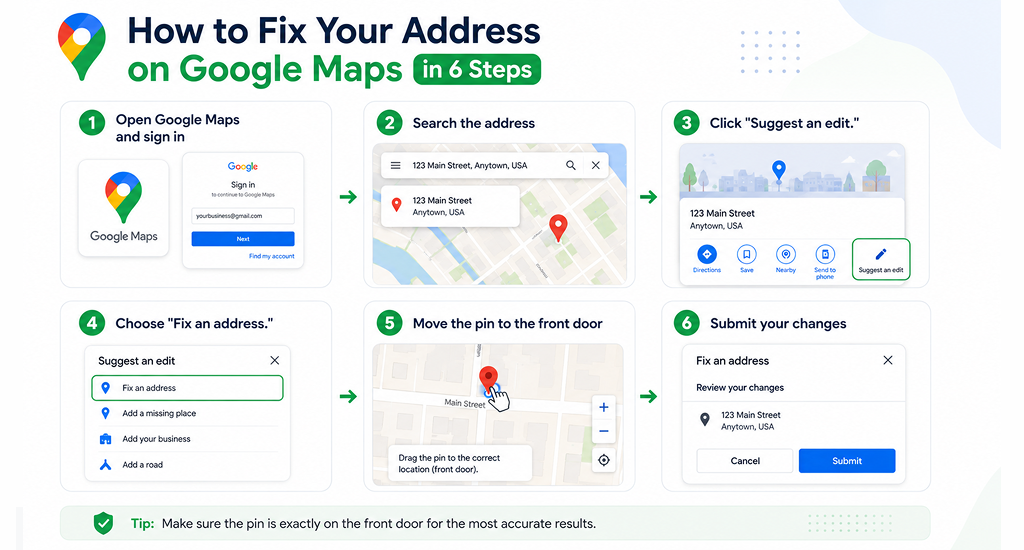
You can fix your address on Google Maps in 3 ways: on desktop, on Android, or on iPhone or iPad. The steps are similar across all 3 platforms, but the UI is slightly different on each. Pick the one you are using now.
Fix Google Maps Location On Desktop
- Open maps.google.com in your browser. Sign in to your Google account from the top right corner.
- Search for the address you want to fix in the search bar.
- Click “Suggest an edit” in the left-hand panel under the business or place name.
- Click “Wrong pin location or address.” A box will open with the address fields.
- Edit the address fields. Use the correct unit, suite, or apartment format. For example: “123 Main St, Apt 4B.”
- Click “Edit map location.” Drag the pin so the base lands on the center of the correct building or the front entrance.
- Click “Save,” then “Submit.” Google will email you when your edit is reviewed.
Change an Address on Google Maps from Android
- Open the Google Maps app. Sign in if you are not already.
- Search for the address you want to fix.
- Scroll past the photos and directions to the “About” section. Tap the pencil icon next to “Edit.”
- Tap “Fix an address.“
- Adjust the pin to the center of the building. Tap “Next.”
- Edit the address fields and tap “Submit.”
Fix Google Maps’ Location on iPhone or iPad
- Open the Google Maps app. Sign in if you are not already.
- Search for the address you want to fix.
- Tap “Suggest an edit,” then tap “Fix an address.”
- Move the map so the pin lands on the center of the building or the front entrance.
- Enter the correct address details and tap “Submit.”
What Google is Trying to Verify: Things to Check Before You Submit
Before you tap Submit, check 3 things to make your edit stick:
- Address format: Use the exact format that matches USPS records (correct unit, suite, ZIP code).
- Pin position: Place the pin on the front door or in the driveway, not on the rooftop center or on the road.
- Verification proof: Have a Street View screenshot or geotagged photo ready in case Google asks for more proof of your location.
How Long Does It Take to Fix an Address on Google Maps?
Google Maps typically reviews and approves address edits within 2 to 3 weeks. Once approved, your edit goes live in the next map update, which happens about 4 times per year (roughly every 3 months).
Here is the full timeline:
- Edit review: 2-3 weeks. Google’s automated system checks your edit against other sources.
- Manual review: 1 to 2 weeks longer if your edit is flagged for a Local Guide to review.
- Map update: About every 3 months (4 times per year). This is when approved edits actually show up on the live map.
- Total wait time: Anywhere from 2 weeks to 4 months for the change to be fully visible.
If 4 weeks have passed and you see no email or update under “Your contributions” in Google Maps, your edit was likely silently rejected. Resubmit with stronger verification proof (covered in the next section).
Why Google Maps Keeps Reverting or Rejecting Your Address
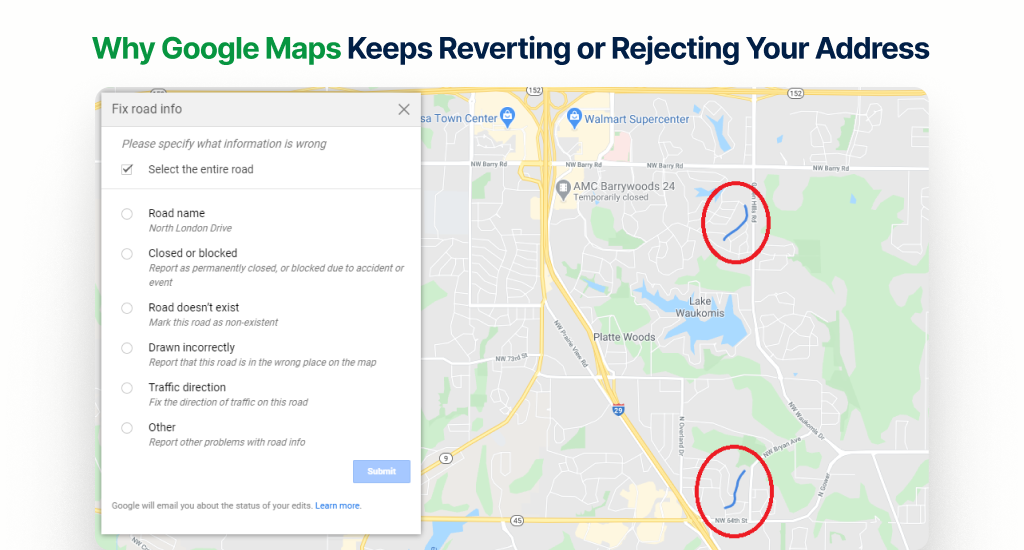
Google Maps reverts or rejects your address edit when its automated system cannot verify the change against other sources, when your pin lands on the wrong structure, or when an older data source overrides your edit. Here are the 5 most common causes, with a fix for each:
- Pin in the wrong spot: Google often places the pin on the road or the rooftop center instead of the front door. Move it to the actual entrance and resubmit.
- Address format conflicts with USPS or local records: Google cross-references your edit with public records. Make sure your unit number, street name, and ZIP code match exactly.
- Old business profile is still active: If a former business at your address never closed its Google Business Profile, Google may continue to show that data. Mark the old business as closed first.
- Edit submitted by a non-verified account: Google trusts edits from Local Guides and accounts with a longer contribution history. A brand-new Google account with no activity is more likely to be ignored.
- Google is using satellite data over your edit: Sometimes Google’s algorithm prioritizes satellite imagery and old address data over user edits. Add a Street View reference and a geotagged photo as proof.
If you have already tried 2 or more edits and none have stuck, the issue is usually one of the first 2 causes listed above. Fix those before your next submission.
How to Get a Stubborn Edit Approved (Pro Tips)
If Google rejected your first edit, here are 5 tactics that improve your approval odds on the resubmission:
- Take a Street View screenshot: Compare what Google shows to what is actually at your location. Use the difference as proof when you resubmit.
- Add geotagged photos: Turn on High Accuracy location in your phone settings. Snap a photo of your house number or building sign, and submit it with the edit.
- Become a Local Guide: Local Guides have more edit authority on Google Maps. Sign up at maps.google.com/localguides and start contributing reviews and photos. Higher-level Local Guides see more of their edits approved.
- Submit from desktop, not mobile: Desktop edits show more pin precision and more address fields. Use a desktop for tricky pin placements or when you need to add a unit number.
- Wait for the next quarterly update: Some edits are approved but not visible right away. They show up after the next map update cycle, which happens every 3 months.
If your edit is for a business address, the faster option is to use Google Business Profile. Business owners get changes processed in 24 to 48 hours, not 2 to 3 weeks.
How to Fix a Home Address vs. a Business Address in Google Business Profile?
Use Google Maps’ “Suggest an edit” for home addresses, neighbors’ addresses, or public places. Use Google Business Profile for your own business listing.
Here is the quick fork:
- Fixing your own home address: Use Google Maps and suggest an edit (see steps above).
- Fixing your business address: Use Google Business Profile instead. The flow is different, giving you direct ownership and control over your listing.
- Fixing a neighbor’s address or a public place: Use Suggest an edit. Public edits work for any address you do not own as a business.
If you run a business, follow the steps for changing your address on Google My Business. It is faster (24 to 48 hours instead of 2 to 3 weeks) and gives you full control over the listing.
Final Thought
Fixing your address on Google Maps takes a few minutes, but getting Google to approve and publish the change takes patience. Drop the pin on your front door, match the address format to USPS records, and resubmit with stronger proof if your first edit fails.
Want to get more out of Google Maps for your home or business? Check out our other guides on local SEO and Google Business Profile optimization.
FAQs
Can I use the same phone number for two businesses at the same address?
What happens if a competitor is already listed at my address on Google Maps?
Can two service area businesses share the same home address?
Can I have two LLCs at the same address with the same registered agent?
Can you have two LLCs with the same EIN?
How do I tell Google two businesses are different?