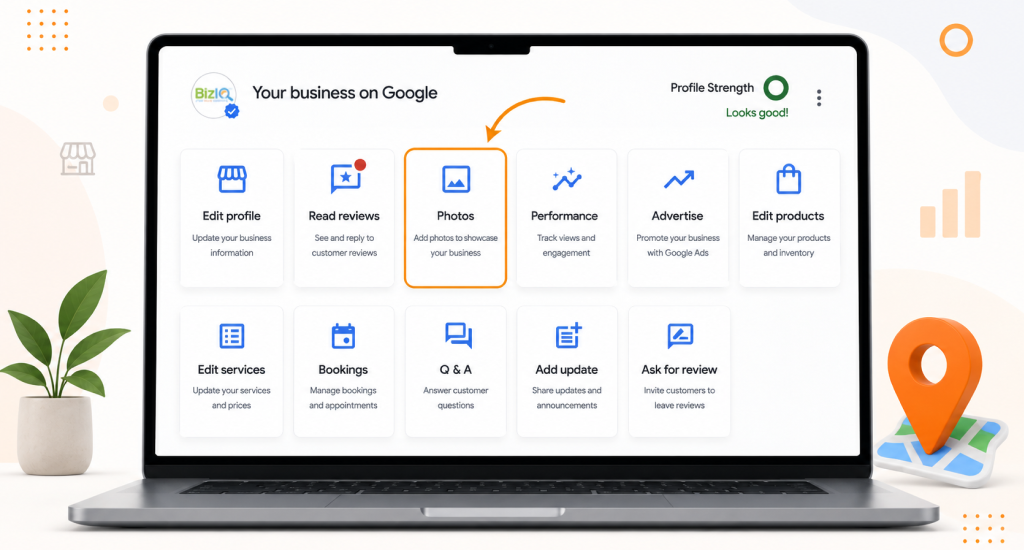
To change your Google Business Profile picture, sign in at business.google.com, open the Photos section, click Add a logo, upload a 720 by 720 pixel square image, crop if needed, and save. The new logo will show up in 24 to 48 hours.
One thing most owners miss: Google sometimes replaces your uploaded logo with an image it finds elsewhere on the web. Our team at Growth For Local has helped local businesses optimize their Google Business Profiles for 4+ years. Read on for the exact image specs, how to fix a rejected upload, and how to take back control of your logo.
Quick Answer: 5 Steps to Change Your GBP Picture
- Sign in to your Google Business Profile at business.google.com
- Open the Photos section in the left menu
- Click Add a logo (or the pencil icon to replace your existing logo)
- Upload a 720 x 720 pixel square JPG or PNG
- Crop if needed and click Save
Tip: Use a transparent PNG for non-rectangular logos. JPG works for solid-square logos.
How to Change Google Business Profile Picture (Desktop)
Changing your Google Business Profile picture on desktop takes 6 steps inside the dashboard. Follow these to swap your logo without errors.
- Sign in to the Google account that owns your Business Profile. Go to business.google.com or search “my business” in Google to find your dashboard.
- Click on the business you want to update. If you manage many locations, pick the right one from the dashboard list.
- Click the Photos section in the left-hand menu. You will see photo categories like Identity, Interior, Exterior, and Logo.
- Click Add a logo (or click the pencil icon on your existing logo to replace it). A modal window opens with upload options.
- Drag and drop your new logo, or click Upload to select it from your computer. Use a 720-by-720-pixel square JPG or PNG.
- Crop the image if needed (Google will prompt you if the aspect ratio is off). Click the blue Save button.
Allow 24 to 48 hours for the new logo to show up on Google Search and Maps. Some changes may take up to 3 business days. If your logo does not appear by then, Google may have rejected it.
How to Change Your Profile Picture on Mobile (Google Maps App)
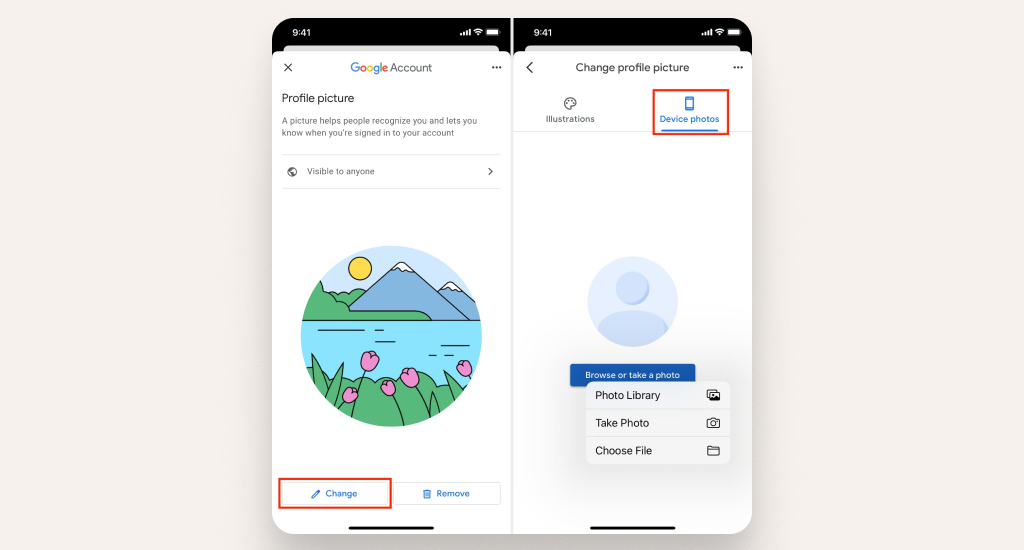
Most owners now manage their Google Business Profile from a phone. Here is how to change your profile picture using the Google Maps app:
- Open the Google Maps app on your phone. Tap your profile icon at the top right of the screen.
- Tap Your Business Profile. If you manage many businesses, pick the right one from the list.
- Tap Edit Profile, then tap Photos in the menu that opens.
- Tap the Logo category. Tap the plus icon to add a new logo, or tap your existing logo to replace it.
- Select your new image, crop if needed, and tap Save. The change goes through the same review process as the desktop.
Mobile uploads work best at the same 720-by-720 pixel size. Save your logo to your phone’s Photos app before you start, so the upload only takes a few seconds.
What are the GBP Picture Size & Specs in 2026?
The recommended Google Business Profile picture size is 720 x 720 pixels at a 1:1 (square) aspect ratio. The minimum is 250 x 250 pixels. Upload as JPG or PNG, between 10 KB and 5 MB.
Full specs for your logo upload:
- Recommended size: 720 x 720 pixels
- Minimum size: 250 x 250 pixels
- Maximum supported: 1080 x 1080 pixels
- Aspect ratio: 1:1 (square)
- File formats: JPG or PNG
- File size range: 10 KB to 5 MB
- Color space: RGB (sRGB is safest)
Use a transparent PNG when your logo has a non-rectangular shape (mascots, graphic marks, asymmetric wordmarks). Google displays the logo on a white background, and a transparent PNG keeps the edges clean. If your logo is a solid square with a built-in background, a JPG works just as well and has a smaller file size.
Avoid uploading any logo under 250 x 250 pixels. Google will silently reject it. Photoshop, Canva, and Figma all let you export at exact pixel sizes.
Logo vs Cover Photo vs Profile Photo: What’s the Difference?
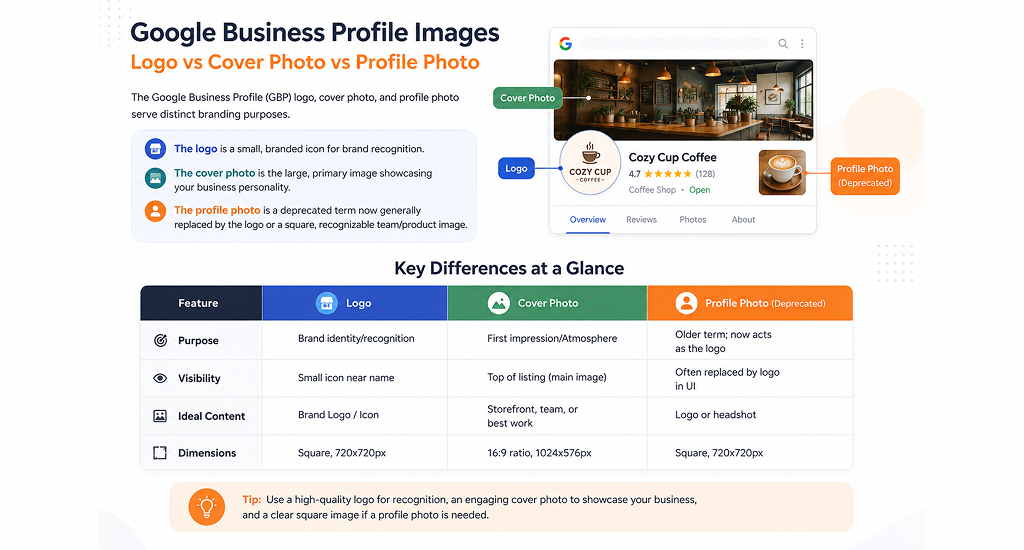
Google calls the image that appears next to your business name in search results a “logo,” even though most people call it a profile picture. The cover photo is a separate banner. Additional photos showcase your business’s interior and exterior, products, and team.
Here is how the 4 image types compare:
- Logo (profile picture): Knowledge Panel and search results. Recommended size 720 x 720 pixels (1:1).
- Cover photo: Top banner on your full business listing. Recommended size 1024 x 576 pixels (16:9).
- Business photos: Photo gallery in Google Maps and Search. Recommended size 720 x 720 pixels (1:1).
- Additional photo categories: Exterior, Interior, At Work, Products, Team, Food and Drink.
Set the logo first. Google rewards businesses with complete profiles by showing the logo more often. Google recommends at least 3 photos per category and 1 photo for Common Areas.
Why Google Won’t Change Your Profile Picture (Troubleshooting)?
Google won’t change your profile picture when the image fails its quality checks, breaks its content guidelines, or when Google’s algorithm decides a different image (one it found elsewhere on the web) is more relevant than your upload.
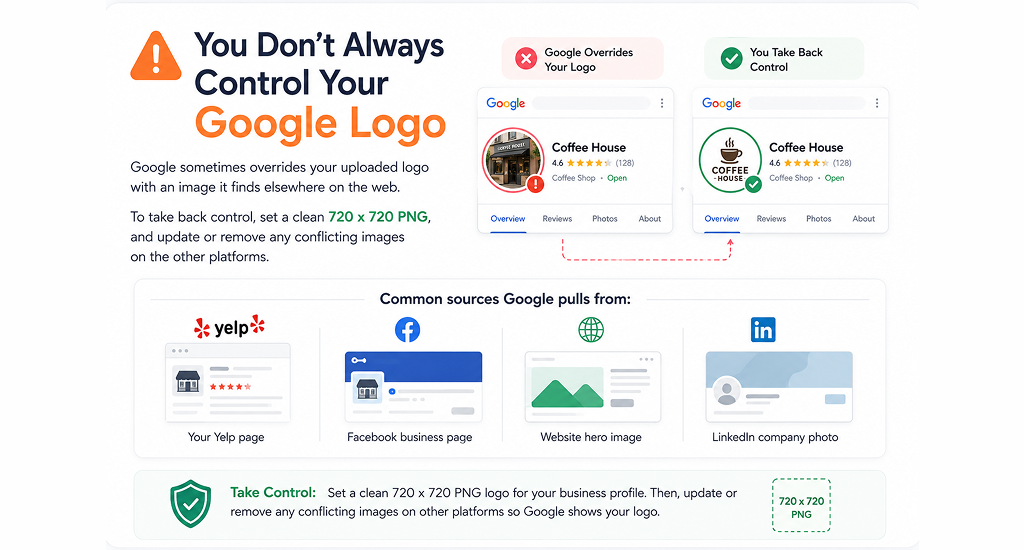
Here are the 5 most common reasons your picture won’t change, with a fix for each:
- Image too small: If your file is under 250 x 250 pixels, Google will silently reject it. Re-upload at 720 x 720.
- Wrong format: Google accepts only JPG and PNG. Convert any HEIC, WEBP, or SVG files first.
- Image flagged by content policy: Logos with text overlays, watermarks, or filters get flagged. Use the clean original export from your design file.
- Google replaced your logo with another image: If your business has photos on Yelp, Facebook, or your website, Google sometimes picks one of those instead. Remove or update the conflicting image source (see callout above).
- Profile not verified or incomplete: Logos only display when your name, address, phone, and hours are filled in. Complete those fields first to build location authority on Google Maps.
If your new logo does not appear within 48 hours, check if Google rejected it and resubmit.
How to Remove Photos from Google Business Profile
You can remove photos you uploaded to your Google Business Profile in 3 clicks. Customer-uploaded photos can only be removed by flagging them for review.
Remove your own photos (5 steps):
- Sign in to your Google Business Profile and open the Photos section.
- Click the By Owner tab to filter for photos you or your team uploaded.
- Click the photo you want to remove.
- Click the trash can icon in the top-right corner.
- Confirm by selecting Remove. The change goes live within 24 to 48 hours.
Flag customer-uploaded photos:
Customer photos work differently. You cannot delete them directly. To flag one, open Google Maps, find the photo, tap the three-dot menu, and select Report a Problem. Pick the violation reason (offensive, irrelevant, wrong business). Google reviews flags within 1 to 2 weeks. Photos that do not break Google’s guidelines cannot be removed.
Tips to Pick a Profile Picture That Builds Trust
Your logo does more than fill a slot. It is the first thing a customer sees in search results. Pick one that builds trust at a glance.
- Use your real logo: Not a stock icon, not a photo of your storefront. Google’s algorithm rewards consistent branding across the web.
- Keep important elements centered: Google sometimes displays the logo as a circle. Anything near the edges gets cut off.
- Use high contrast: Light backgrounds get washed out on Google’s white panels. Dark, high-contrast logos read better.
- Match your website logo: When the logo on your site matches your GBP, Google has more signals to trust it. This also helps if you run your business without a website, in which case your logo carries even more of the brand weight.
- Avoid text-heavy designs: The logo displays at about 40 x 40 pixels in the Knowledge Panel. Text disappears at that size.
Final Thought
Changing your Google Business Profile picture takes a few clicks, but getting it to stick requires the right size and format, and a complete profile. Use 720-by-720 pixels, JPG or PNG, and make sure your business name, address, phone number, and hours are all current.
Want to get more out of your Google Business Profile? Check out our other guides on local SEO and GBP optimization. They cover everything from boosting your visibility on Google Maps to fixing rejected photos and beyond.
FAQs
How long does it take for my new Google Business Profile picture to show up?
Can I change my Google Business Profile picture from my phone?
Why does my Google Business Profile picture keep changing on its own?
What’s the difference between the Google Business Profile logo and profile photo?
Does changing my Google Business Profile picture hurt my rankings?