Most business owners in Arizona don’t realize how much trust they lose when their Google Business Profile is missing major details, like insurance information. If you add insurance to Google Business Profile, it really helps customers feel safe before they even call you. It also shows that you follow the rules and protect your clients.
Google’s 2025 update changed the layout and settings slightly, and many owners are now unable to locate the section where they can add this content. But once you know where to look, it’s quick and simple to do.
This guide is tailored for Arizona businesses and walks you through the process in clear, short steps. Read on to easily update your Google Business Profile with accurate insurance information.
What Is Insurance Information on GBP?
Insurance information on your Google Business Profile (GBP) shows what type of coverage your business carries. You can find this section in your Business Information settings, under the Attributes tab.
It often appears beside other details like business hours or payment methods. When someone searches for your company on Google Search or Maps, this information may appear directly in your profile.
It helps customers see at a glance that you are a responsible and protected business. These insurance attributes tell potential clients that you are covered if something goes wrong. Also, it can build positive comfort before they even contact you.
Why Adding Insurance Details Matters (Trust & Conversion)
People usually prefer hiring a company that is licensed and insured. Showing this on your GBP creates instant trust. If you add insurance to Google Business Profile, it acts as a strong trust signal for both Google and customers, strengthening your Local SEO performance and helping you win more qualified calls.
Businesses that display their updated insurance details on Google profiles often get more clicks, more calls, and faster inquiries. For home service providers, contractors, and medical offices, the “licensed & insured” tag is almost expected.
It shows professionalism and care. In simple terms, this small update can make your profile look safer and more reliable. Also, it can gather higher conversions and stronger local SEO trust.
Types of Insurance You Can Display
There are a few coverage types you can show on your profile.
- General Liability – Covers damage or injury caused during your work.
- Professional Liability (E&O) – Protects you if your service causes a financial loss or mistake.
- Workers’ Compensation – Helps employees if they get hurt on the job.
- Commercial Auto – Covers company vehicles and job-site transport.
Each coverage amount adds another layer of trust, especially for service-based businesses. As they work in people’s homes or handle valuable items.
How It Appears to Customers
When customers search your name on Google or open your profile on Maps, they can see your insurance coverage inside the Business Information section. On the desktop, it shows in the right-side panel under essential details.
On mobile, it appears within your About or Info tabs, often under “Business attributes.” This way, customers can view your display insurance coverage quickly before reaching out. It’s simple, visible, and helps you stand out as a business that takes protection seriously.
Insurance Requirements for Arizona Businesses
Local businesses must meet certain Arizona business insurance requirements to protect employees, clients, and property. These requirements differ by industry but help every company stay compliant, trustworthy, and financially secure across the state.
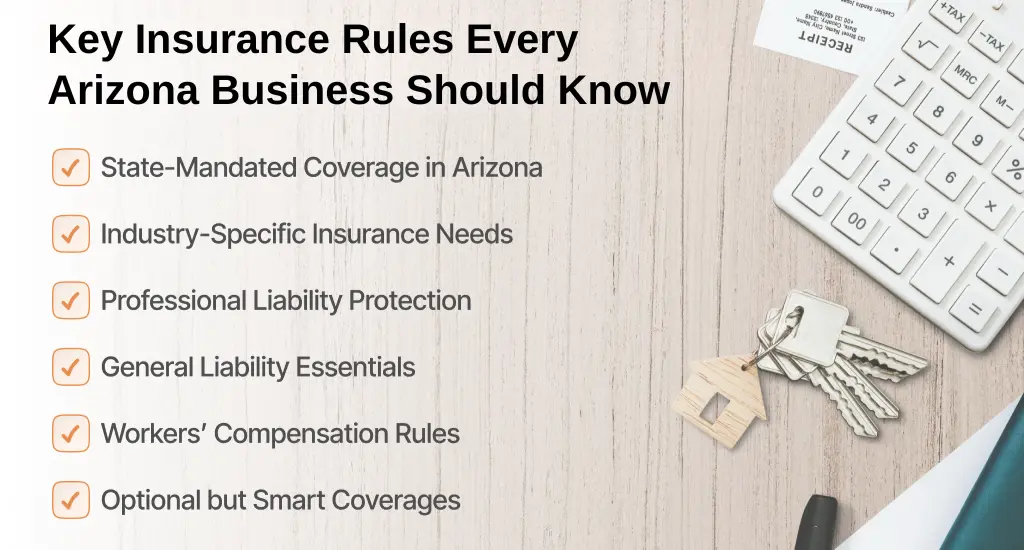
State-Mandated Insurance Types in Arizona
The Arizona Department of Insurance requires all employers with at least one employee to have workers’ compensation insurance.
It covers medical costs and lost wages if a worker is injured on the job. Other optional policies, like general or professional liability, are not mandatory but are strongly advised. They can help you avoid financial risks and lawsuits.
Industry-Specific Requirements (At a Glance)
Insurance rules differ across industries. Contractors need general liability insurance to work legally. Home service providers like plumbers or electricians must show proof of coverage. Healthcare, legal, and transport sectors often need added professional or commercial auto policies for safety and compliance.
Professional Liability Coverage Expectations
Professions that offer advice or specialized services, like doctors, lawyers, or consultants, should carry professional liability insurance. It protects against claims of mistakes or negligence that could cause client losses or harm.
General Liability Coverage Standards
Most small and medium-sized businesses in Arizona rely on general liability insurance. It covers bodily injury, property damage, and accidents involving clients or visitors. Thus, it can reduce unexpected financial burdens and protect your reputation.
Workers’ Compensation in Arizona
Employers in Arizona are legally required to provide workers’ compensation once they hire staff. It ensures employees get proper care after workplace injuries. Also, it keeps businesses compliant with state employment laws.
Optional Yet Valuable Coverages
While not mandatory, commercial auto, cyber liability, and property insurance offer extra protection. They shield your company from vehicle accidents, data breaches, or damage to business assets caused by fire, theft, or weather.
Step-by-Step Guide to Add Insurance to Your Google Business Profile (Desktop & Mobile)
Adding your insurance information to your Google Business Profile (GBP) may look difficult at first, but it’s actually straightforward once you know where to look. This guide walks you through desktop and mobile steps on how to upload insurance documents to Google Business Profile.
Open Your GBP Dashboard (Desktop & App)
On a desktop, log in to business.google.com and select your business. In the GBP dashboard, you’ll see all your business settings in one place. On mobile, you should open the Google Maps app, tap your profile picture, and select “Your Business Profile” to reach similar GBP business settings. Both paths lead to the same place, just on different devices.
Navigate to Business Information → Attributes/Info
Once in the dashboard, you should click Business Information on desktop or Edit profile on mobile. The insurance fields live under the Attributes or Info tab. Google’s UI can vary slightly depending on updates, but you’re looking for sections labeled Business attributes or Insurance information.
Add Insurance Provider Details
Enter your insurance provider name, contact URL or phone, and optionally your policy reference. These insurance provider details let customers see exactly who covers your business, which adds confidence.
Enter Policy Types & Coverage
Next, add your policy types: General Liability (GL), Professional Liability (E&O), Workers’ Compensation (WC), and Commercial Auto. Try to include coverage amounts if safe, but skip sensitive policy numbers unless you want them public. It is the coverage amount display step.
Upload Proof (COI) If Applicable
Some businesses may want to add a Certificate of Insurance (COI). If Google allows uploads, add it directly. If not, you should share it via Photos or Posts as a workaround. It is your responsibility to upload insurance documents to the Google Business Profile option.
Verify & Publish Changes
Finally, save your updates and check that changes appear live. Verification may take a few minutes. Once done, your insurance details are visible. It will build trust and show clients your business is protected. Don’t forget to verify insurance and update insurance details on your Google profile regularly.
Check Mobile & Desktop Views
After publishing, you should review your profile on both desktop and mobile. Make sure your insurance info appears clearly in the Business Information section. It ensures customers always see your protections, no matter how they search.
Keep Information Current
Insurance policies change, and coverage updates need to be reflected on GBP. Regularly revisit your Business attributes to maintain accuracy and stay compliant with client expectations. This positive gesture keeps your profile reliable and professional.
What Insurance Info to Include (and What to Keep Private)
Sharing insurance information on your Google Business Profile (GBP) builds trust, but some details should remain private. Here’s what to include, what to skip, and how to present it clearly.
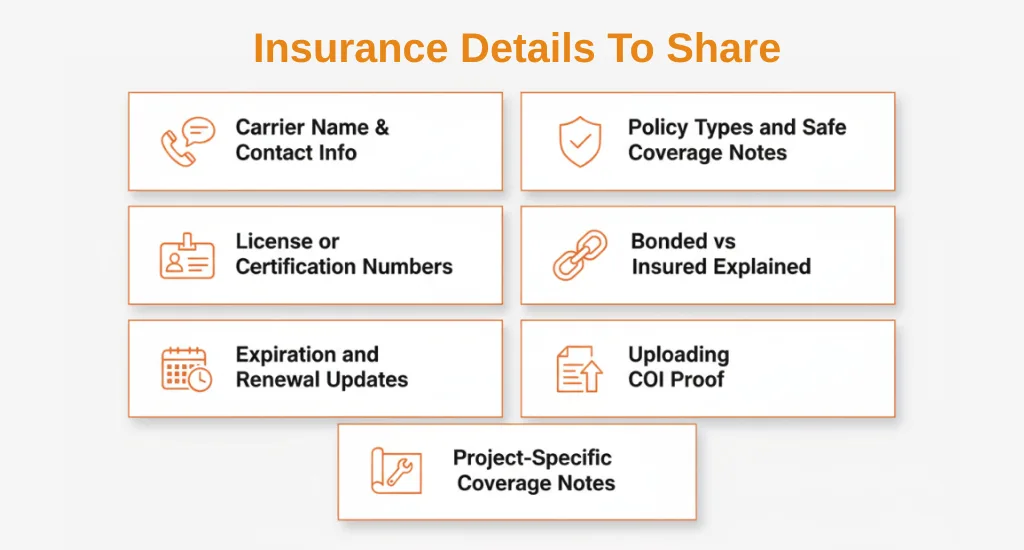
Carrier Name & Contact
Always try to list your insurance provider details clearly. You should use the standardized carrier name and, if possible, link to their official website or provide a contact number. It shows clients exactly who backs your business.
Policy Types & Coverage (Safe Disclosures)
You should include the types of coverage you carry, like General Liability (GL) or Professional Liability (E&O). It’s safe to mention coverage amounts like “GL up to $1,000,000,” but avoid full policy numbers for privacy. These policy types give clients confidence without exposing sensitive information.
License/Certification Numbers (When Useful)
For contractors, healthcare, or legal professionals, adding license or certification numbers helps build trust. You can also include them in your profile Description or other public sections if needed.
Bonded vs Insured-What to Display
You should explain the difference clearly. Being bonded protects clients from losses caused by your work, while being insured shows your company carries liability coverage. Accurate phrasing avoids confusion and reassures customers.
Expiration Dates & Update Cadence
You should show policy renewal dates carefully, if relevant. Try to set reminders for updates so your profile always reflects current coverage. It maintains trust and prevents clients from seeing outdated information.
Optional: Upload COI Proof
You should consider uploading a Certificate of Insurance (COI) if Google allows. If not, use photos or posts as a workaround. It lets clients verify coverage without exposing private policy details.
Optional: Coverage Notes for Specific Projects
You can include notes about coverage relevant to certain jobs, like special liability for high-risk projects. You should keep it short and clear so customers understand protections without sensitive details.
Best Practices for Sharing Insurance on Your Google Business Profile
Adding insurance information to your Google Business Profile (GBP) is a great way to show clients that your business is trustworthy and professional. But it’s important to do it carefully. If you follow some best practices, it will help you build confidence while keeping sensitive information secure.
Right Level of Detail
You should include enough information to make potential customers feel safe. For example, you can share your coverage type and approximate amounts, like “GL up to $1,000,000.” Avoid giving full policy numbers or excessive internal details. The goal is to provide clear trust signals without putting your business at risk.
Privacy & Security
Keep sensitive details private. You should mask full policy numbers and avoid posting agent personal information. If you upload a Certificate of Insurance (COI), use images that show coverage without revealing confidential information. It protects your business while still showing you are properly insured.
Keep It Current (Maintenance SOP)
Insurance changes over time, and outdated information can harm trust. Schedule regular checks, quarterly or before renewals, and assign a responsible person to update the policy expiration or coverage details. To remain alert for renewals, ensure your profile remains accurate and compliant.
Competitive Advantages (Differentiation)
Sharing insurance on your profile can set you apart from competitors. You can use local branding for licensed and insured positioning across photos, posts, and your description. Also, use phrases like “licensed and insured” in your description, posts, or photos. You can even A/B test different ways of displaying badges to see which increases client inquiries and click-throughs.
Clear & Consistent Formatting
Consistency matters. You should make sure all insurance details follow the same format across desktop and mobile. Try to use the same terms for coverage types and amounts. Consistent formatting improves readability and helps customers trust your profile.
What NOT to Include
You should avoid sensitive or irrelevant information. Never share full policy numbers, agent personal details, or coverage that does not match your actual policies. If you include such details, they can confuse clients or create legal risks.
Industry-Specific Insurance Attributes for Arizona Businesses (Matrix Guide)
Different industries in Arizona highlight different insurance details on their Google Business Profile (GBP). This section explains Arizona business insurance facts, what each type of business should show, what proof helps, and how to present it safely.
Home Services (Contractors, Plumbers, HVAC)
For service area businesses (SABs) like contractors, plumbers, and HVAC experts, the major insurance types include General Liability (GL), Workers’ Compensation (WC), and Commercial Auto.
These show that your business covers job-site damage, worker injuries, and vehicle use. If you upload vehicle wrap photos or team pictures on job sites, it will help confirm legitimacy and coverage.
Healthcare & Medical
Medical and wellness providers should display Professional Liability (Malpractice/E&O) coverage. You can mention this under your business attributes or in the description.
Always keep language HIPAA-aware, meaning never post patient data or private details. Also, you can display your license number or certification to prove qualification and compliance.
Legal & Professional Services
Law firms, accountants, and consultants should highlight Professional Liability (E&O) coverage. It protects clients from financial loss caused by professional mistakes. Including a bar or state license number builds confidence. You can use short and reassuring phrases like “fully insured and licensed under Arizona law.”
Automotive & Transportation
Auto repair, towing, and delivery companies should focus on Commercial Auto insurance. You can also include Garage Keepers Liability if your business stores or repairs vehicles. Photos of insured vehicles or facilities add credibility and visual proof of compliance.
Retail & Storefront Businesses
Shops, salons, and local retailers may not need detailed listings but can still benefit from showing General Liability coverage. Mentioning it reassures customers about safety inside your store. Optional Property Insurance details (for fire or theft protection) can be added to your profile description for extra trust.
Service Area Businesses (Arizona)
Arizona-based SABs like landscapers, pest control, and cleaning services should highlight their regional coverage and insurance proof. Sharing fleet photos, maps of service areas, or short posts about safety standards helps. These show professionalism and reliability to clients across Arizona.
When used correctly, each insurance attribute acts as a gap closer. Also, it bridges the trust gap between you and potential clients. Not every business type has every insurance option visible on GBP (some are Yes, some Partial). If you add the right ones for your category, it can build authority, visibility, and client confidence.
Troubleshooting Insurance Information on Your Google Business Profile
Sometimes, insurance information doesn’t appear or save correctly on your Google Business Profile (GBP). These common issues usually have simple fixes once you know where to look and what settings to adjust.
Insurance Fields Don’t Appear
If you can’t find the insurance section in your profile, it may be because of a business category mismatch or limited region rollout. Google only shows certain business attributes for eligible categories.
Try switching to a more precise category that fits your service, like “Plumber,” “Law Firm,” or “Contractor.” If the section still doesn’t appear, you can use your Description or upload a photo of your insurance certificate as a temporary workaround.
These steps help meet business category requirements even when Google’s UI hides the direct field.
Errors When Saving or Publishing
If you receive errors when saving your updates, you should first clear your browser cache or update your mobile app. Check your roles and permissions. Only verified owners or managers can edit sensitive data.
Duplicate accounts or delayed syncs can also block updates, so you should sign out of extra sessions and wait a few hours before retrying.
Editing or Removing Insurance
To make changes, you can go back to Business Information → Attributes/Info and edit the fields directly. If you’re removing old coverage, you should keep proof images labeled “expired” for record-keeping, but don’t show them publicly.
Missing Updates on Live Profile
Sometimes, changes don’t appear instantly on Google Search or Maps. You should refresh the page or clear the app cache. If updates still lag, wait 24 hours for Google’s system to sync.
Category Limitations (Arizona Businesses)
Not all Arizona business types have access to insurance display features. Some, like local retail or digital-only services, may not see this field yet. Google rolls these updates out in stages, so you should check back after new releases.
Contacting Support for Persistent Errors
If nothing works, you should contact Google Business Profile Support and escalate with documentation; understanding the second appeal for the GBP suspension process can also help if edits trigger stricter reviews.
You can report missing insurance fields or saving errors through the “Help” menu. Attach screenshots showing the issue. Support may manually enable your insurance attribute or confirm whether it’s still in limited testing for your area.
Verifying Your Insurance Information with Google Business Profile
Google sometimes checks business insurance details to confirm they’re real and up to date. This process helps maintain trust between verified businesses and customers searching for reliable and insured providers. Here’s how it works and what you can prepare.
How Google May Verify
Google may run random verification checks or contact you directly for proof. They often request a Certificate of Insurance (COI) or cross-check your details with public records. Make sure your business name, address, and phone number (NAP) match your official documents and licenses.
Even small spelling differences can delay the process. This verification step helps prove your insurance certificate is legitimate and connected to your listed business.
Documentation Google May Ask For
During verification, Google might ask for copies of your COI, license, or workers’ compensation proof. Transportation businesses may also need to show vehicle insurance. Always submit readable files and ensure your policy dates are visible but secure. You should never share private numbers or signatures publicly.
Licensed & Insured “Badges” and Third-Party Verification
Some industries qualify for a “Licensed & Insured” badge or third-party verification through partners. These programs confirm your documents through trusted agencies before displaying a badge on your profile.
If your business type isn’t yet supported, you can still mention your coverage under “Business Information” or show a COI image in photos or posts.
Keeping Proof Readily Available
Keep your certificates, policy summaries, and licenses stored in a single folder, ready for quick access. If Google requests verification, fast responses prevent delays in showing your insurance details online.
Updating After Policy Renewal
When your insurance renews, you should upload the latest COI or update your coverage dates immediately. It ensures Google always has valid information, and your insurance attributes stay verified.
If Verification Fails or Stalls
If your proof doesn’t get approved, you should double-check that your business name matches your insurance paperwork. If it still fails, reach out to Google Business Profile Support and explain that your coverage is valid. They may guide you through manual review or suggest accepted formats for your next submission.
How Insurance Information Impacts Your Google Ranking and Customer Trust
Adding insurance details to your Google Business Profile (GBP) builds credibility and also helps your business perform better in local search results. It strengthens trust signals, improves click rates, and can even influence Google’s ranking behavior indirectly.
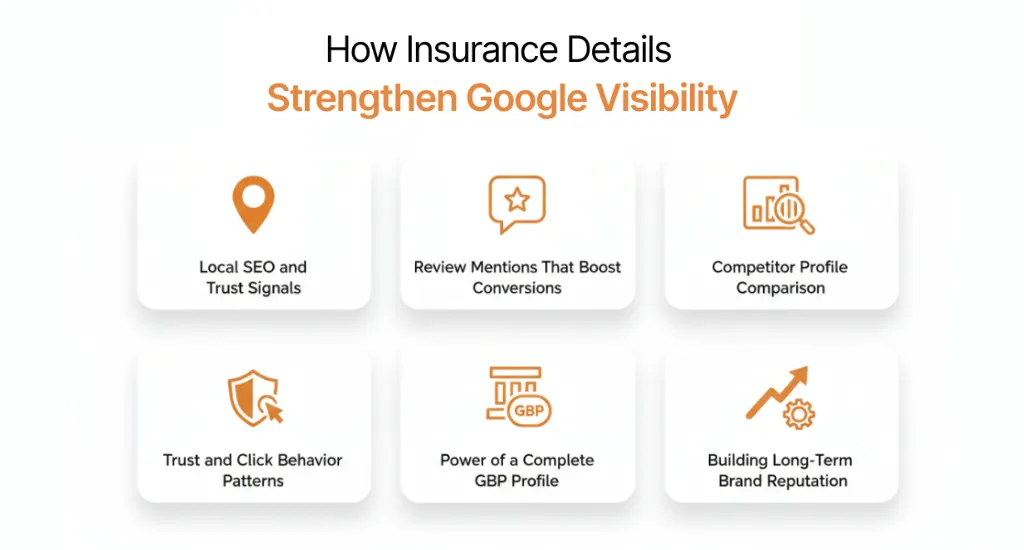
Local SEO Benefits (Indirect)
Insurance details act as trust signals that help increase your local search visibility, and when combined with AI Search Optimization, they can lift engagement from AI-driven surfaces. A complete and verified profile shows Google that your business is real and dependable.
When people interact with your profile, like clicking to call or visiting your website, Google notices those actions as positive signals. Over time, it can improve your visibility in local search results.
Here’s how insurance information helps your SEO indirectly:
- >Builds profile trust: >Google favors listings that look authentic and well-detailed.
- >Encourages engagement:> Customers spend more time on profiles they trust.
- >Improves click behavior: >More calls and website visits boost your ranking signals.
- >Supports consistency:> Matching details across your GBP, website, and schema makes your brand look credible and established.
Review & Conversion Impact
Customers often notice phrases like “licensed and insured” when deciding who to hire. So, encourage feedback and be ready to respond to a suspicious 1-star review to protect trust and conversion rates. Many even mention it directly in their reviews, which increases your trustworthiness to new visitors. But beware of scams; some scammers intentionally add a 1-star review to hurt your business.
Encouraging clients to highlight this in feedback can raise your conversion rate. Reviews that reflect reliability and coverage assurance can make your listing more appealing and professional.
Competitive Audit
You should check what your top competitors in Arizona show on their profiles. Some may already list their insurance or licenses, while others might not. Identify these gaps and try to use them as opportunities. By displaying more complete and verified details, you can create a stronger impression and outshine nearby listings.
Trust and Click Behavior
Profiles with clear safety indicators, like proof of insurance or certification, usually receive more clicks. This aligns with how customers search for local services in 2025 and what they expect to see. People are more comfortable contacting a business that looks established and protected. It builds loyalty over time and results in more direct calls or quote requests.
Profile Completeness Advantage
Google favors businesses that fill out every relevant section. Listing your insurance coverage, license, and service details helps reach that 100% completeness mark. A thorough profile is more likely to appear in map results or top spots on search.
Long-Term Brand Reputation
Keeping verified insurance visible year-round signals responsibility and consistency. It positions your business as dependable. Also, it helps retain long-term customers and attracts higher-quality leads. In the long run, this mix of trust and local SEO support builds a brand that stands out both in ranking and reputation.
Alternative Ways to Showcase Insurance When the Field Is Missing
If your Google Business Profile doesn’t display an insurance field, don’t worry. There are still reliable, Google-compliant ways to show that your business is licensed, insured, and trustworthy. A few best practices, like adding descriptions, visuals, and updates creatively, can reinforce confidence and meet customer expectations.
Business Description Examples (Copy Blocks)
Even without a dedicated insurance field, you can naturally include proof in your business description. You should use short and confident lines that align with your industry while keeping details secure.
Examples:
- Contractors: >“Fully licensed and insured for residential and commercial projects.”
- Healthcare:> “HIPAA-compliant and insured to protect patient safety.”
- Plumbers/HVAC: >“State-certified and insured for every job we handle.”
- Legal/Professional: >“Licensed and insured to uphold the highest industry standards.”
Photos/Videos of Certificates (COI Framing Tips)
Try to show credibility visually while protecting sensitive data. You can upload professional images or short videos of your Certificate of Insurance (COI).
Best practices:
- Crop out policy numbers or agent info.
- Use alt text like “Verified insurance certificate.”
- Add titles/captions that say “Current business insurance – renewed [year].”
- Ensure file names are keyword-friendly (e.g., insured-business-2025.jpg).
Q&A Section Scripts
You should use Google’s Q&A feature to answer common customer questions about insurance. It is a subtle yet effective trust-building strategy.
Example:
- Question:> “Are you licensed and insured?”
- Answer: >“Yes! Our business holds active licenses and full insurance coverage to ensure safe and reliable service for every client.”
Google Posts for Renewals/Updates
Whenever your coverage renews, you should use Google Posts to share the update. It shows consistency and professionalism.
Post ideas:
- “We’ve renewed our full business insurance for 2025 – another year of trusted service.”
- “Proud to stay licensed and insured to protect your home and business.”
- “Coverage renewed! Safety and accountability remain our top priorities.”
Customer Reviews Mentioning Insurance
Try to encourage clients to mention that you’re licensed and insured badge Google in their reviews. Real customer statements work as authentic trust signals that Google can recognize semantically.
Tip: After a successful project, you can ask clients to highlight professionalism, safety, or compliance in their feedback.
Website & Schema Support
Finally, you should back up everything with consistency on your website.
- Add your insurance statement on the About or Contact page.
- Use schema markup (LocalBusiness, Organization) to note licensing or insurance.
- Keep renewal dates synced between your website and GBP.
These small details ensure your trust signals stay aligned across all online platforms.
Maintaining Insurance Compliance on Google Business Profile
Keeping your insurance details up to date on your Google Business Profile (GBP) is essential for both compliance and credibility. Regular maintenance ensures customers and Google see accurate and trustworthy information.
Here’s how to manage your insurance information effectively and stay compliant all year long.
Renewal Reminders & Owner Assignment
Never let your insurance lapse or appear outdated online. You should set up a structured process for managing policy renewals and GBP updates.
Best practices:
- Add calendar reminders for renewal dates 30 and 60 days before expiration.
- Assign a primary and backup owner responsible for updates.
- Document your renewal process in a simple SOP (Standard Operating Procedure).
- Keep a digital log of insurance uploads and verification emails for easy access.
Updating After Carrier or Coverage Changes
Whenever you change your insurance carrier, you should update your Google Business Profile promptly to maintain accuracy. Inconsistent details can create confusion or signal unreliability to Google and customers.
Action steps:
- Edit your GBP Description or Insurance field (if available).
- Replace outdated COI images and label them “Expired” before uploading new ones.
- Update your website, local citations, and schema to match the new provider or coverage.
- Reconfirm your information in directories like Yelp, Angi, and BBB for consistency.
Arizona Department of Insurance Resources
For businesses operating in Arizona, the Arizona Department of Insurance and Financial Institutions (DIFI) provides verified tools to help maintain compliance and validate your coverage.
You can use it to:
- Verify license and policy details directly with carriers.
- Access public records for verification in disputes.
- Stay informed about state-specific insurance requirements.
- Link to your license verification page from your GBP or website to enhance trust.
Annual GBP Insurance Audit Checklist (Download)
Running a yearly GBP audit can confirm all your trust signals remain accurate and aligned.
Include these checks:
- Confirm insurance and license details match on GBP, your website, and documents.
- Test how your insurance details appear on mobile and desktop views.
- Verify that your COI images are current and properly labeled.
- Review your renewal SOP and confirm responsibilities are assigned.
- Ensure privacy compliance (no policy numbers or personal agent info displayed).
Continuous Compliance & Visibility
Staying compliant isn’t just about avoiding mistakes; it’s about reinforcing reliability. When your GBP, website, and supporting documents all align, Google and your customers see your business as legitimate, responsible, and safe to hire.
Try to make insurance compliance part of your local SEO maintenance routine, not just a once-a-year update.
End Note
If you properly add your insurance information to Google Business Profile, it really helps customers feel safe and confident about your business. It shows that you’re responsible and follow Arizona’s professional standards.
So, keep your GBP insurance information updated and accurate to protect your reputation and improve visibility. A few minutes spent today can build stronger trust and attract more loyal clients tomorrow.